
Recording a Manual Check in isolved is important for ensuring an employee's year-to-date earnings are reported correctly on their W-2 and collecting applicable payroll taxes due. Here are step-by-step instructions for entering a Manual Check in isolved:
-
Go to PAYROLL PROCESSING > Payroll Entry > Individual Time Entry Grid.
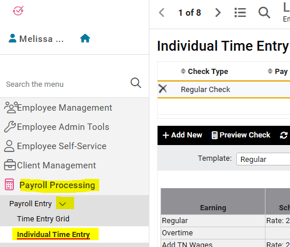
- Select the employee from the Employee List.
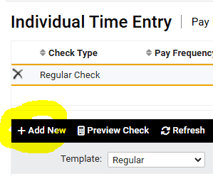
- Click Add New in the black bar.
- Check Type: select Additional Check (other fields will auto-populate) when you click Save in the black bar.
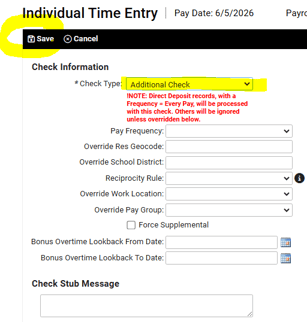
- Click Save in the black bar.
- Select the Additional Check in the list (gold bars should highlight the check in the list.
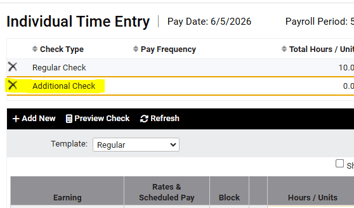
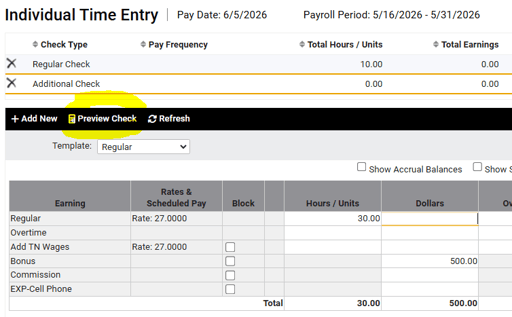
- Enter the hours and/or earnings as applicable on the Individual Time Entry Grid.
- Click Preview Check on the black bar.
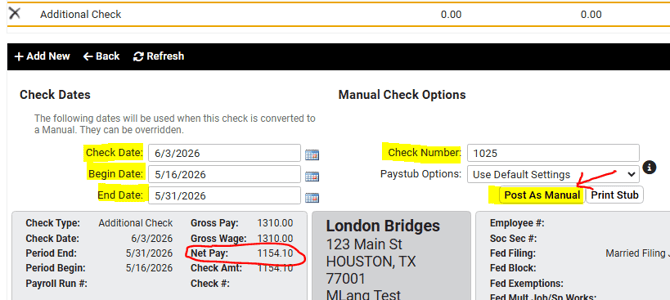
- Enter Check Date.
- Enter pay period Begin Date and End Date.
- Enter the Check Number if applicable.
- Make note of the Net Pay amount on the check, as this is the amount that should have been paid to the employee outside of isolved.
- Click Post As Manual button in center of screen.
NOTE: If the manual check should not include any regularly scheduled deductions, such as for health insurance, you will need to select "Additional Check - No Deductions." Taxes will still be calculated and withheld, but no scheduled deductions will be included. (This includes retirement plan contributions!)
DON'T FORGET!!! Click the Post As Manual button, otherwise the check record will remain as an Additional Check and funds WILL BE PAID to the employee on the next processed payroll. Post As Manual prevents the funds from being paid out through isolved, and allows only for the collection of the payroll taxes.
 What Else Should I Know?
-
If you have forgotten to pay an employee for hours or earnings on their regularly scheduled paycheck, you can use the steps above to have isolved calculate the correct net pay amount owed. Please be sure to consider the "NOTE" above as you enter the information.