
Here are step-by-step instructions for adding a single punch, adding an hour record, deleting a punch/hour record, and approving a pending punch in isolved:
ADDING A SINGLE PUNCH TO EMPLOYEE TIMECARD
- Go to EMPLOYEE SELF-SERVICE > Time > Time Card.
- Select the employee from the Employee List.
- On the Timecard, left click the mouse into the day that needs to be corrected to pull up the +Add record box.
- Select Punch.
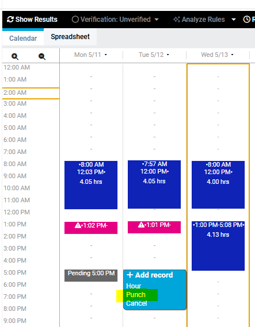
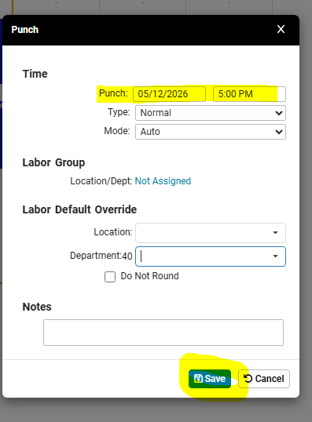
- The date will default to the calendar date you clicked into on the timecard. You can enter a different date if needed.
- Enter the time of the punch (be sure to enter the AM or PM as applicable).
- If you need to override the employee's default department or location, select from the dropdowns as applicable. Otherwise, the employee's default assignments will apply.
- Enter Notes if desired.
- Click Save.
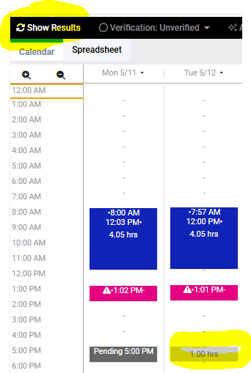
- The punch record will show in grey on the timecard. Click Show Results in the black bar to apply the punch to the timecard.
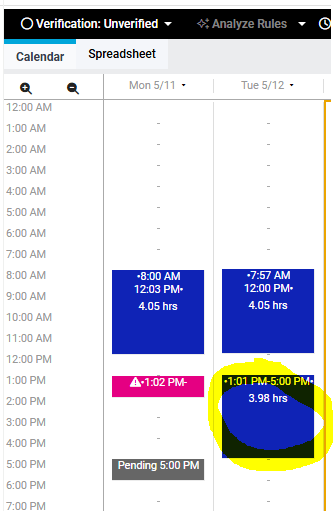
- The punch record will update to blue and will be paired with a corresponding punch as an hour record if applicable.
ADDING AN HOUR RECORD TO AN EMPLOYEE TIMECARD
- Go to EMPLOYEE SELF-SERVICE > Time > Time Card.
- Select the employee from the Employee List.
- On the Timecard, left click the mouse into the day that needs to be corrected to pull up the +Add record box.
- Select Hour.
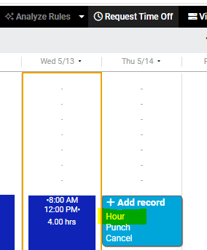
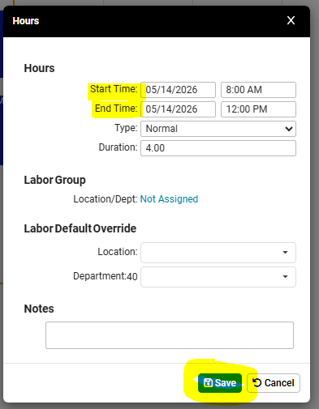
- The dates will default to the calendar date you clicked into on the timecard. You can enter a different date if needed.
- Enter the Start Time and End Time (be sure to enter the AM or PM as applicable).
- If you need to override the employee's default department or location, select from the dropdowns as applicable. Otherwise, the employee's default assignments will apply.
- Enter Notes if desired.
- Click Save.
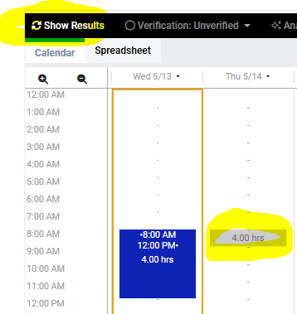
- The hour record will show in grey on the timecard. Click Show Results in the black bar to apply the hour record to the timecard.
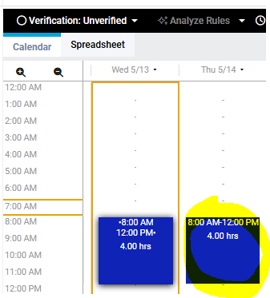
- The hour record will change to blue when applied to the timecard.
DELETING A PUNCH/HOUR RECORD ON TIMECARD
- Go to EMPLOYEE SELF-SERVICE > Time > Time Card.
- Select the employee from the Employee List.
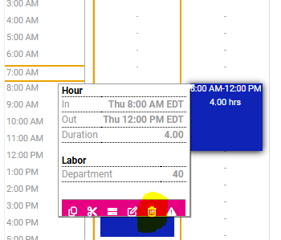
- On the Timecard, left click (or hover your pointer) over the Punch or Hour record needing to be deleted. Click on the trash can icon to delete the record.
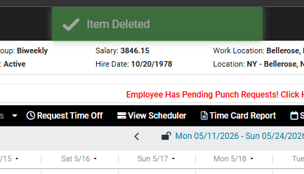
- A green confirmation box will appear at top of screen when item is deleted.
APPROVING A PENDING PUNCH
-
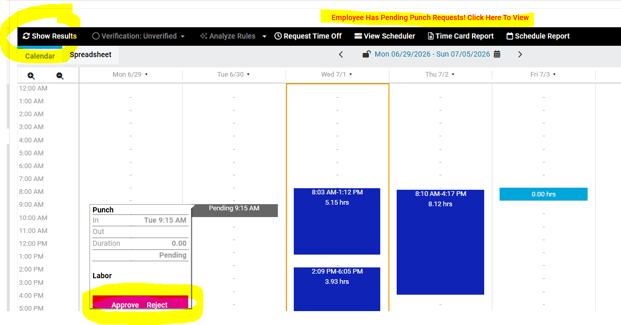
When an employee submits a missing punch, the employee's time card will have a red alert "Employee Has Pending Punch Requests! Click Here to View" at the top of the screen.
-
Hover over the "Pending" punch box and left click to bring up the "Approve" or "Reject" action bar. Select as appropriate, then click Show Results in the black bar to save.
-
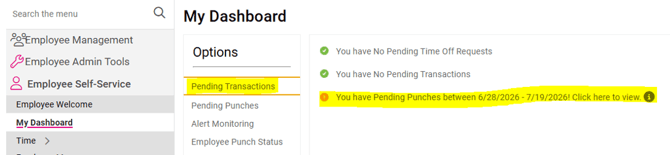
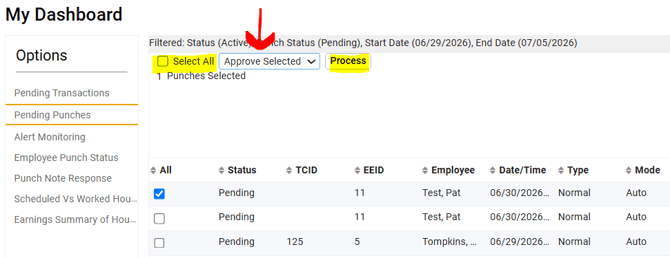
Multiple punch requests can be viewed and approved/rejected in bulk from the EMPLOYEE SELF-SERVICE > My Dashboard screen. Simply click the "You have Pending Punches..." notification listed on the Pending Transactions menu.
-
All submitted missed punches will be displayed. Select which punches you would like to Approve (or Reject) by checking the appropriate box on the left side or check the Select All box at the top.
- The action drop-down menu will open up for you to select Approve Selected or Reject Selected. After making your selection, click the Process button to save or delete the punches accordingly.
 What Else Should I Know?
-
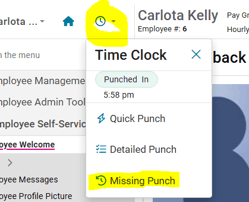
Employees can submit a Missed Punch from their Self-Service account by clicking on the clock icon, then selecting "Missing Punch" from the list.
-
Employees will be notified via email when their submitted missing punch has been processed.