Here are step-by-step instructions for updating employee's 401(k) contribution amounts in isolved:
STOPPING THE CURRENT CONTRIBUTION
- Go to EMPLOYEE MANAGEMENT > Employee Benefits > Benefits.
- Choose the employee from the Employee List.
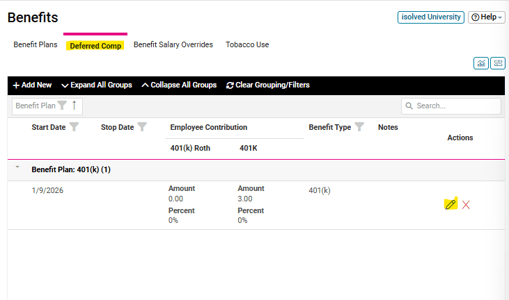
- Click the Deferred Comp tab towards the top of the screen
- Click the pencil icon to the right of the current record to open the edits screen.
- Enter a Stop Date to stop the current contribution amount.
- Click Save in the black action bar.
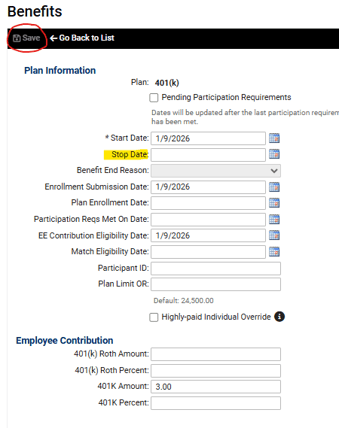
NOTE: The start and stop dates are pay period driven. Meaning, if the stop date is outside of the current pay period, the deduction amount listed will not change until the pay period with the stop date is processed.
ADDING THE NEW CONTRIBUTION
Once you've stopped the current contribution amount, you will need to add the new contribution amount to be deducted each pay period on the Deferred Comp tab:
- Click Add New in the black action bar.
- Choose the Benefit Type and Plan from the drop-down menus.
- Enter the Start Date for the new amount. (See previous note about start/stop dates.)
- In the "Employee contribution" section, enter the Amount or Percent for the contribution types that the employee wishes to have deducted each pay period -- "401(k) Roth" (post-tax) and/or "401K" (traditional, pre-tax).
NOTE: Employees can have both types of contributions at the same time; however, for each type, only an "amount" OR a "percent" may be used, not both.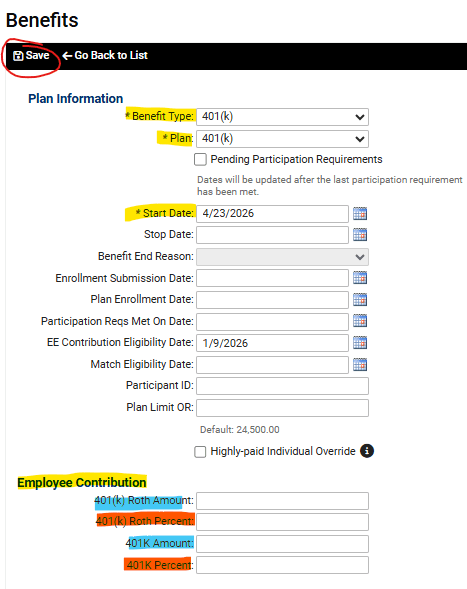
- Click Save in the black action bar.
PLEASE NOTE: While you can simply edit the existing record, we recommend following our Whirks Way best practice of creating a new record each time an employee's contribution election is updated. This will allow you to retain a historical record of all changes that have been entered, for easy reference or reporting, in the future.
 What else should I know?
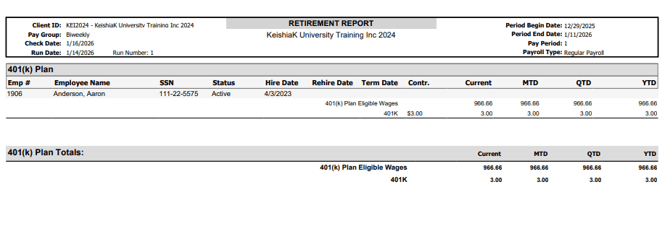
- The Retirement Report is a helpful report in isolved that can be accessed from the Payroll Preview Reports drop-down list while preparing your payroll, or from REPORTING > Report Archive after the payroll has been processed by clicking the blue Retirement Report hyperlink.
- The Retirement Report offers a clear and comprehensive overview of employee plan information, including details on current employee contributions, employer match amounts, and annual aggregate data, all conveniently accessible in one location.
- This report serves as a valuable tool for verifying the accuracy of deductions prior to payroll processing, as well as a reliable reference when entering contribution details directly on your broker's website for funding.