Depending on if Benefit Plans have been setup in isolved, making changes to an employee's deductions will either be done directly on their scheduled Deductions screen or by adding a new Benefit Plan record to their profile. Here are the step-by step instructions on how to make those updates:
SCHEDULED DEDUCTIONS (No Benefit Plans setup)
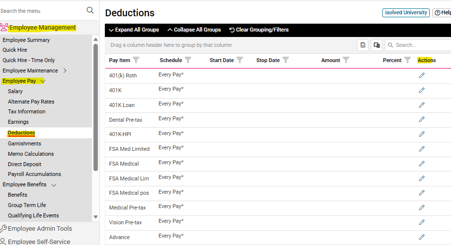
- Go to EMPLOYEE MANAGEMENT > Employee Pay > Deductions.
- Choose the employee you wish to update from the employee list.
- From the list of deductions, locate the health deduction you need to update and click the pencil in the Actions column to edit.
- Enter the updated Amount to be deducted from the employee's paycheck based on the Default Schedule listed.
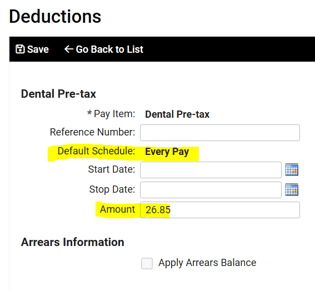
NOTE: Changes made to this screen will take effect on the next scheduled payroll. If you enter a Start Date, the deduction will be postponed until that date falls within the pay period. However, this will also stop any current deductions from being processed. If you want the current deduction to continue until a specific future date, you must update this record after the last pay period in which the current deduction should be applied.
Additionally, the Stop Date will ensure that no further deductions take place once the date entered falls outside of your active pay period. The total deduction amount will be taken on the final paycheck. If the employee is changing their health benefit coverage (premiums), you do not need to enter a Stop Date; simply follow the steps above after processing the final payroll with the old amount.
5. Click Save in the black action bar.
HEADS UP: If you see this message displayed when attempting to edit an employee Deduction, this is an indicator that Benefit Plans have been built out for company, and changes to their deduction amount must be done from the Benefits screen (see steps below).
UPDATING AN EMPLOYEE'S BENEFIT PLAN DEDUCTION
- Navigate to EMPLOYEE MANAGEMENT > Employee Benefits > Benefits.
- Use the drop-down menus to elect appropriate Benefit Type and corresponding Plan.
- Once the Plan Information loads, enter the Start Date for the updated coverage. Please note: once a Start Date has been entered, it cannot be deleted.
- The Stop Date will populate with the current end date of your benefit plan, or can be left blank.
- Enrollment Submission Date should match the Start Date entered.
- Select the new Coverage Information based on the options provided. The updated per pay deduction (and employer memo calcs) will display in the Preimum Information section below.
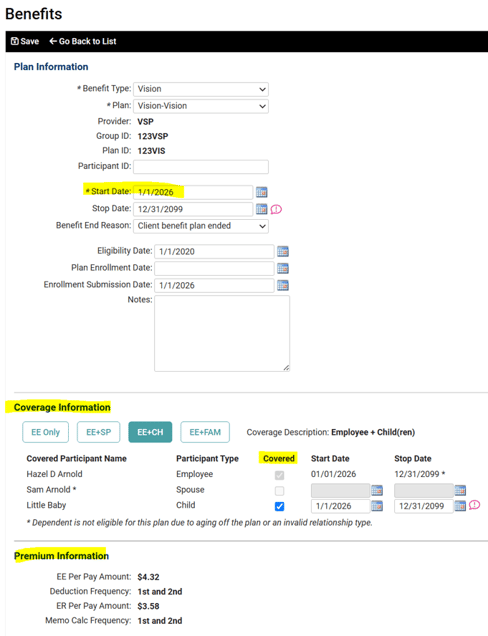
NOTE: If the coverage selection includes dependent coverage, those dependents must first be entered into isolved. If you are not seeing appropriate dependents to select from, please navigate to EMPLOYEE MANAGEMENT > Human Resources > Employee Contacts.
7. Click Save in the black bar.
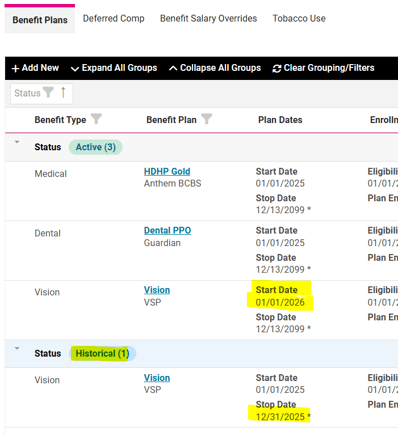
8. If applicable, the system will apply the appropriate Stop Date to the previously Active plan, listing it in the "Historical" records.
 What else should I know?
- As an employer, if you contribute to the cost of your employee's health benefits and choose to display the employer cost on an employee's paycheck, using our Benefit Management Service will allow you to make changes in one place as well as ensure both employees' and the employer's rates are correct based on the type of coverage they have selected.
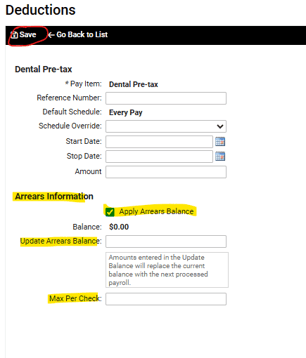
- isolved can track and apply arrears balances. Any amounts not able to be deducted on a particular paycheck will then be applied to the next payroll cycle. The system will continue to apply the full Arrears Balance until it reaches $0.00. Because the arrears balance is added to the normal deduction, it is possible to limit the total amount to be applied by entering in a Max Per Check amount. To set up arrears balance, reach out to your client success specialist.