
Here are step-by-step instructions to deduct a one-time advance from an employee’s check:
ENTERING A ONE-TIME ADVANCE DEDUCTION
- Log into your isolved Admin User account at https://whirks.myisolved.com.
- Navigate to PAYROLL PROCESSING > Payroll Entry > Individual Time Entry.
- Select the employee from the Employee List.
- Select ALL from the Template dropdown just below the black bar.
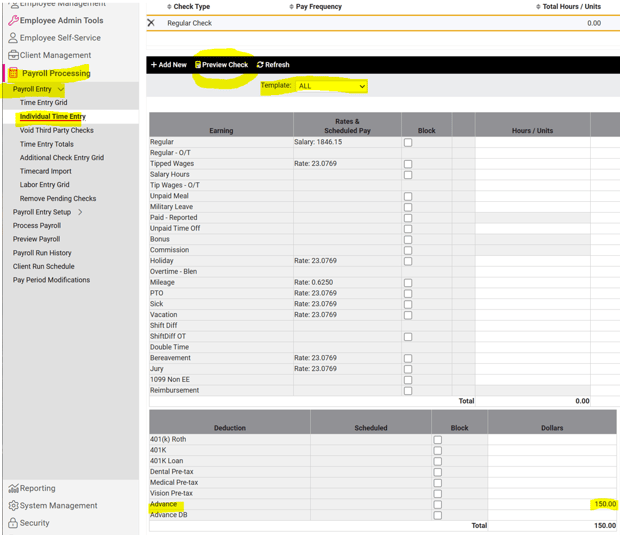
- Enter the amount to be deducted on the Advance Deduction line.
- To confirm accuracy of the check, use the Preview Check button in the black bar.
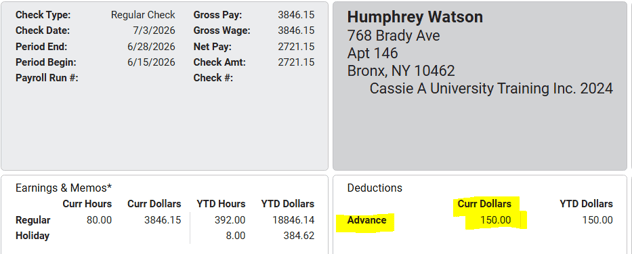
If the amount of the advance was large enough that it is preferable to be deducted over multiple payrolls, this will need to be setup on the employee's Deduction screen, instead. Here are step-by-step instructions to deduct an advance over time:
ENTERING AN ADVANCE OVER MULTIPLE PAY PERIODS
- Log into your isolved Admin User account at https://whirks.myisolved.com.
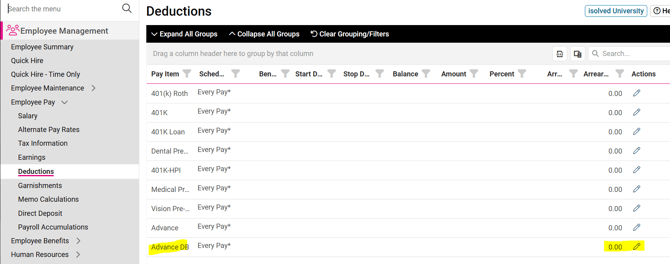
- Navigate to EMPLOYEE MANAGEMENT > Employee Pay > Deductions.
- Select the employee from the list.
- From the list of deductions, locate the Advance–DB deduction and click the pencil icon in the Actions column to edit.
- Enter the full balance of the advance in the Balance field and the amount to be deducted each pay in the Amount field.
NOTE: This amount will be automatically deducted from the employee's paycheck and the balance updated without any additional steps. Deductions will continue until the balance reaches $0.00.
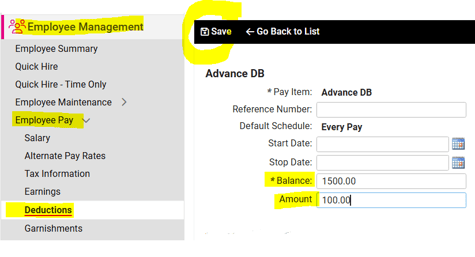
6. Click Save in the black bar.
NOTE: If you do not see the "Advance-DB" deduction listed on the employee's profile, please reach out to your Client Success Specialist to get it added to your environment.
NOTE: If you are seeking to recoup funds that were overpaid to an employee through payroll as taxable wages, then an Advance deduction is not the appropriate correction. Please reach out to your Client Success Specialist to determine the steps needed to ensure the employee's year-to-date hours, wages, and taxes are corrected, as well.
 What Else Should I Know?
-
Advances can be entered into the employee's Individual Time Entry (ITE) grid prior to preparing your full payroll for processing. Any information entered on the ITE screen will auto-save and remain until you are ready to complete your payroll processing.