
Here are step-by-step instructions for entering an employee pay rate change:
ENTERING A CURRENT CHANGE
- Go to EMPLOYEE MANAGEMENT > Employee Pay > Salary.
- Select the employee from the Employee List.
- Click Add New in the black bar.
- Record Type defaults to Current Change for the current pay period.
- Effective Date defaults to the first day of the current pay period.
- Select the applicable Change Reason from dropdown list provided.
- Pay Type defaults to current pay type of last salary record, however, this can be updated, if needed.
- Pay Group defaults to current pay group of last salary record. (If you have more than one Pay Group, this can also be updated, if needed.)
- Frequency defaults to current frequency of last salary record.
- Normal Hours defaults to the appropriate number of hours for the pay schedule (40 for weekly, 80 for bi-weekly, 86.67 for semi-monthly, and 173.33 for monthly payroll schedules). This field should not be edited. If the employee is an hourly employee, they will only be paid for the number of hours listed for them on the Time Entry Grid. Salaried employees will automatically be credited with the normal hours for each pay period based on your schedule frequency.
- Enter the new Hourly Rate, Per Pay Salary, OR Annual Salary - you only need to enter one field, and the other fields will auto-populate accordingly.
- Enter any desired Notes.
- Click Save in the black bar.
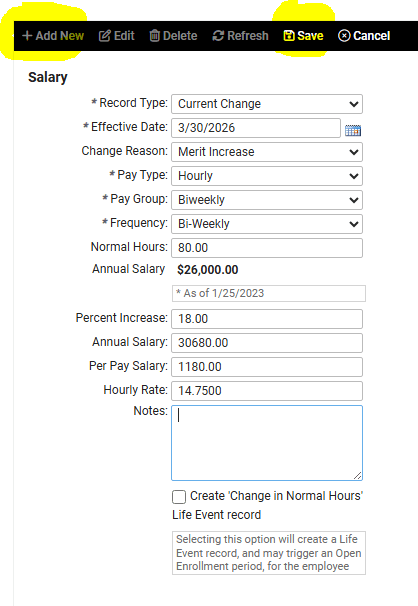
NOTE: The "Create 'Change in Normal Hours' Life Event record" checkbox is only needed if you are currently using Open Enrollment functionality for your company-offered benefits within isolved. By checking that box, a Life Event email will be sent to your employee allowing them to make any additions or changes to their benefit selections. If you are not using Open Enrollment in isolved, this box can be ignored.
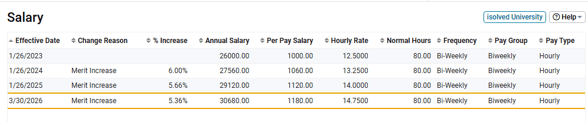
The new record will show in the archived list at the top of the screen. The employee's new rate will also be reflected on the Time Entry Grid.
ENTERING A FUTURE CHANGE
Pay rate changes can be done in advance to ensure they are not missed when preparing payroll once the change becomes effective.
- Go to EMPLOYEE MANAGEMENT > Employee Pay > Salary.
- Select the employee from the Employee List.
- Click Add New in the black bar.
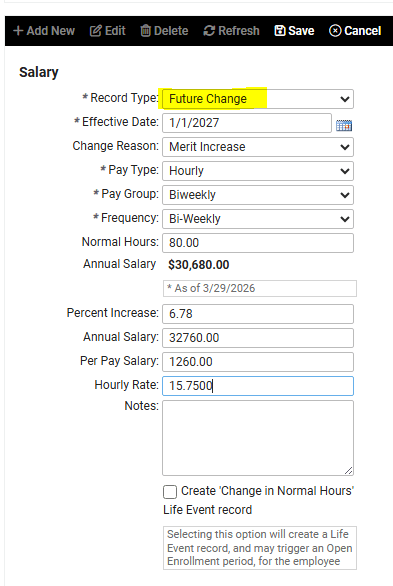
- Select Future Change from Record Type dropdown list provided.
- Effective Date defaults to the start date of the current pay period.
- Select the applicable Change Reason from dropdown list provided.
- Pay Type defaults to current pay type of last salary record, however, this can be updated, if needed.
- Pay Group defaults to current pay group of last salary record. (If you have more than one Pay Group, this can also be updated, if needed.)
- Frequency defaults to current frequency of last salary record.
- Normal Hours defaults to the appropriate number of hours for the pay schedule (40 for weekly, 80 for bi-weekly, 86.67 for semi-monthly, and 173.33 for monthly payroll schedules). This field should not be edited. If the employee is an hourly employee, they will only be paid for the number of hours listed for them on the Time Entry Grid. Salaried employees will automatically be credited with the normal hours for each pay period based on your schedule frequency.
- Enter the new Hourly Rate, Per Pay Salary, OR Annual Salary - you only need to enter one field, and the other fields will auto-populate accordingly.
- Enter any desired Notes.
- Click Save in the black bar.
The future record will show in the archived list at the top of the screen. However, the change will not take effect until the Effective Date falls within the pay period dates. Once the effective date is within the pay period dates, the new rate will be reflected on the Time Entry Grid.
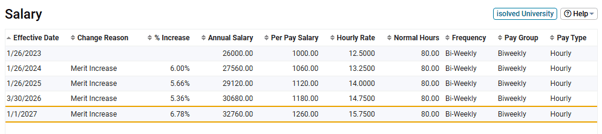
Note: If the effective date of the change falls in the middle of a pay period, the system will apply the new rate to the FULL PAY PERIOD. We recommend using the start date of the pay period as the effective date when scheduling pay rate changes. If a change is needed mid-pay period, please reach out to your Client Success Specialist to discuss steps for overriding the pay rate as needed.
 What Else Should I Know?
- For a quick view of all current employees' Per Pay Salary or Hourly rates, navigate to EMPLOYEE ADMIN TOOLS > Employee Administration > Employee Salary/Hourly Rate List. The list can be sorted and filtered by the column headers. This is a helpful compliance tool for ensuring all employee hourly rates meet the required minimum wage for their assigned work location.