
A Note on Employer Responsibility
As an employer, it is important that you do not advise employees on how to fill out their W-4. While it may be tempting to help when someone asks, the W-4 is the employee's responsibility and each individual's tax situation is unique. However the employee completes the W-4 should be accepted as true and accurate. The IRS holds the employee, not the employer, responsible for accuracy.
NOTE: If an employee asks for guidance, direct them to the IRS Tax Withholding Estimator or encourage them to consult with their tax specialist.
Here are step-by-step instructions for employees to access the Tax Updates Wizard through their Employee Self-Service account:
ACCESSING TAX UPDATES WIZARD IN EMPLOYEE SELF-SERVICE (CLASSIC VIEW)
- Log into Classic ESS at https://whirks.myisolved.com.
- Under the Employee Self-Service menu on the left side, click Tax Updates Wizard, then click Start.
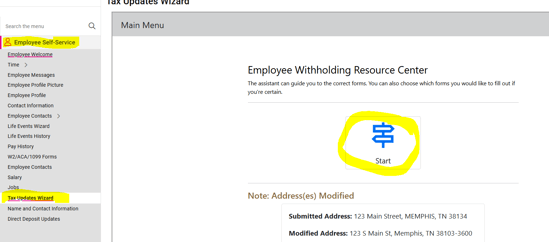
- Select the jurisdiction(s) [tax forms] needing to be updated and follow the wizard prompts to complete each form, then review the summary.
- To submit the completed form, they will need to check the box to confirm everything has been entered accurately, enter the last 4 of their SSN, and click Submit Form.
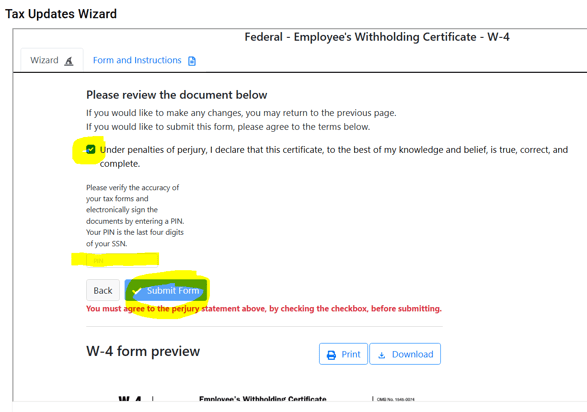
- The submitted form will automatically update the employee's tax withholding designations in isolved and will be applied to their next processed paycheck.
ACCESSING TAX UPDATES WIZARD IN ADAPTIVE EMPLOYEE EXPERIENCE (EMPLOYEE WORKSPACE VIEW)
- Log into AEE at https://aee.myisolved.com or access via the isolved mobile app.
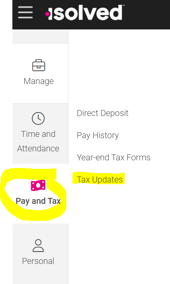
- Go to PAY AND TAX > Tax Updates
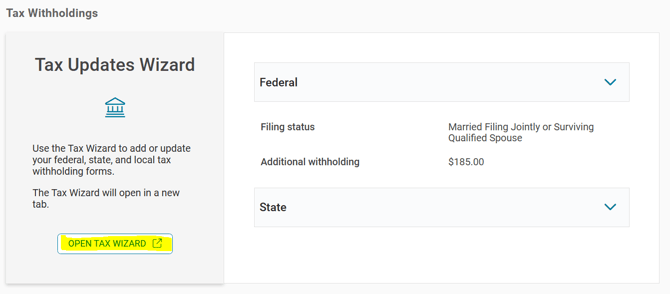
- Click OPEN TAX WIZARD (opens in a new tab).
- Follow steps #3-4 above to complete, review, and submit the updated form(s).
CLIENT ADMIN USER MANUALLY ENTERING W-4 IN ISOLVED
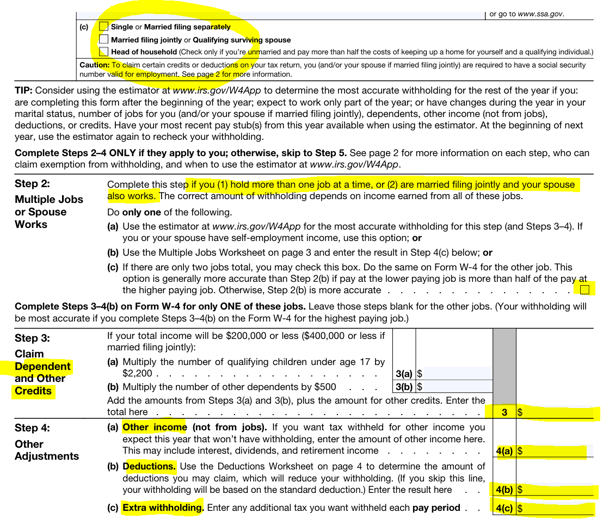
If an employee completes a paper W-4, you can manually enter the information in isolved. Make sure to always keep the signed paper copy on file. (NOTE: These can be permanently saved on the employee's profile. See section below)
- Go to EMPLOYEE MANAGEMENT > Employee Pay > Tax Information.
- Select the employee from the Employee List.
- Under Federal Income Tax, update the fields based on the employee's W-4. These fields align directly with each senction/line item on the W-4 form.
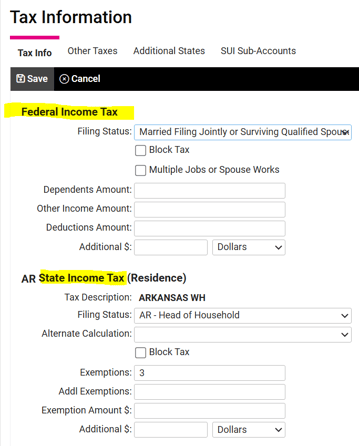
- If the employee also submitted a state withholding form, complete the State Income Tax section as appropriate.
- Click Save in the black bar.
NOTE: You are required to implement the W-4 exactly as the employee submits it. You should not refuse the W-4 or modify the employee's elections.
UPLOADING A SIGNED PAPER W-4 INTO ISOLVED
An Admin User can upload a scanned or photographed copy of the signed W-4 for recordkeeping in isolved:
- Go to EMPLOYEE MANAGEMENT> Human Resources > Employee Documents.
- Select the employee from the Employee List.
- Click on the Other tab.
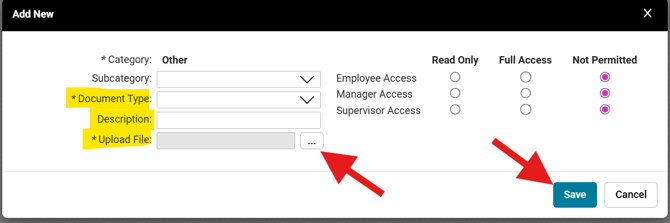
- Click Add New to upload the file. Use the drop-down menu to select the Document Type, enter an appropriate Description (such as "2026 Federal W-4"), then click the three dots to Upload the File from your computer.
- Select the access for this form for employee and their manager and/or supervisor as desired. (NOTE: "Read Only" will allow them to view the document, but not make any changes. "Full Access" will allow them to change or delete the form. "Not Permitted" will cause the form to be unavailable entirely.)
- Click Save.
 What Else Should I Know?
- No limits on updates: Employees can submit a new W-4 at any time. Changes take effect on the current payroll.
- Digital vs. paper records: If the employee completes the Tax Updates Wizard, the tax settings automatically update in the system, and a digital copy of the form is saved in isolved. If an Admin User updates the Tax Information Screen manually, be sure to upload the paper W-4 into isolved, so there is documentation to support the changes.