
Here are step-by-step instructions for how to get a new employee set up in isolved using the electronic onboarding process:
INITIATING ONBOARDING
-
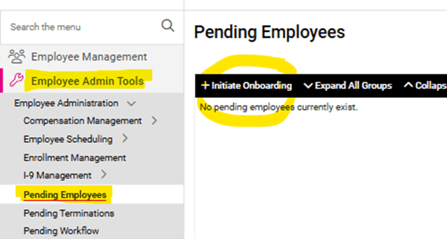
Go to EMPLOYEE ADMIN TOOLS > Employee Administration > Pending Employees.
-
Click Initiate Onboarding in the black bar.
-
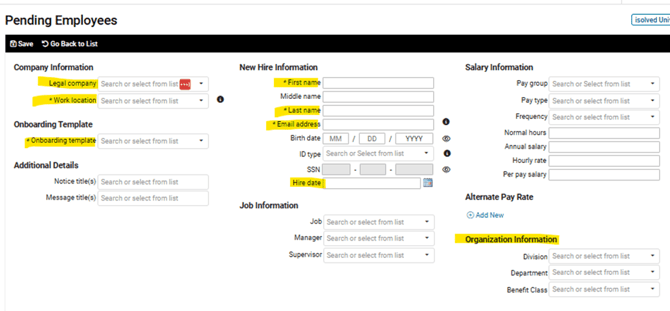
Use the drop-downs to complete the Company, Work Location, and Onboarding Template fields on the far left.
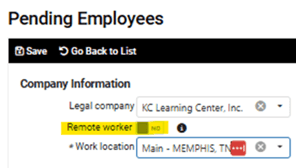
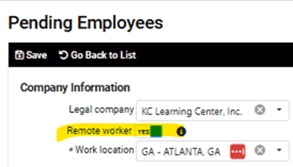
NOTE: If your company is set up for remote workers, you will see a Remote Worker button appear. The default setting is "No," but this can be changed by simply clicking directly on the toggle switch. -
Enter the new employee's First Name, Last Name, and Email Address in the appropriate fields in the center.
NOTE: The email address entered will become the employee's Username for their Self-Service account. Therefore, we recommend that a personal email address is used, rather than a work email address, so the employee will be able to retain access to their paystubs and W2 information even after terminating employment. - You do not need to enter the Birth Date or SSN, as the employee will complete this information as part of their onboarding wizard.
- The Hire Date field can be completed now, or after the employee has submitted their new hire information. However, if left until after submission, this field will automatically populate to the current date, so it will be important to update that appropriately at that time.
- If your company has managers or supervisors that will be included in the workflow of completing the new employee's onboarding, it is VERY important that the appropriate Organization Information is filled in before saving, to ensure that they will have access to the employee's information once submitted.
-
Click Save in the black bar. This will cause an onboarding email to be sent to the new employee immediately, and you will see them displayed on the Pending Employee screen with the (orange) status of "Waiting on Employee."
NOTE: If they do not see the email in their inbox, it is possible that it went to the Spam folder.
NOTE: Only users included in the onboarding workflow will be able to initiate and/or complete the onboarding process. Different roles can be responsible for finalizing various parts of the employee record; for instance, a manager or supervisor may complete the I-9 form, while the HR administrator may input salary information. If you're interested in establishing a multi-step onboarding workflow, please reach out to your Client Success Specialist for assistance.
You will be notified by email once the employee has completed and submitted their information.
COMPLETING THE ONBOARDING PROCESS
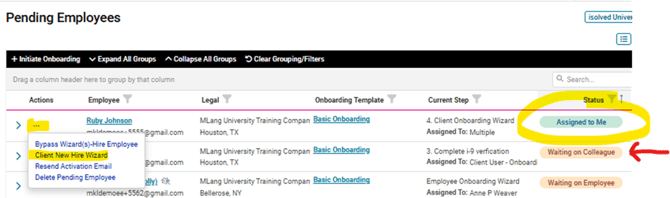
- Go to EMPLOYEE ADMIN TOOLS > Employee Administration > Pending Employees. (The employee will now be listed with a green "Assigned to Me" status.)
- Click on the three Action dots on the far left of the employee's listing and choose the "Client New Hire Wizard" menu option. This wizard will walk you through the reviewing the submitted information and completing the remaining employment information.
- The opening page will display the Employee Information, which should not need any changes or additions to, so you can simply click Next in the black bar.
- On the Employment Information page, you will need to enter the following information:
- Hire Date (if not completed during initiation)
- Employment Category (Part-Time or Full-Time)
- Department
- The system will automatically generate the next Employee ID in numerical order; however, you can change it to align with your preferred ID format.
- All other fields can be left blank. Click Next in the black bar.
- On the Salary page, you will need to enter the following information:
- Pay Group (this will then auto-fill the Frequency and Normal Hours, which can be left as they populate)
- Pay Type (Hourly or Salary)
- One of the rate fields, as applicable (Hourly Rate, Annual Salary, or Per Pay Salary). Once you fill in one field, hit "Tab" on your keyboard, and the other fields will populate with equivalent information.
NOTE: For hourly employees, the "Per Pay Salary" field is informational only. Hourly employees are only paid for the hours entered on the Time Entry Grid when preparing payroll. - Click Next in the black bar.
- The i-9 page is where you will complete the Employer portion of the form.
REMEMBER: YOU ARE RESPONSIBLE FOR EXAMINING THE ACTUAL PHYSICAL
INDENTIFICATION DOCUMENTS. As you will see, the employee can present an ID form from either List A (typically a Passport) or one from both List B (typically a Driver's License) and List C (typically an SSN card or Birth Certificate). You can examine and/or make a copy of these documents beforehand, but you will need the Document Numbers and Expiration Dates (if applicable) in order to complete the form. Use the drop-down for the List(s) chosen to choose the Document type and enter in the other details into the appropriate fields. **PLEASE NOTE: You should not manually type in a document type, as only these forms of documents are acceptable.
- Scroll downward to complete the Signature section, where you will enter your:
- Signature
- Title
- Last Name
- First Name
- Click the "Verify and Sign Form" button, and you will be asked to acknowledge that you have physically received and examined the above indicated documents directly from the employee. Click the "Verify" button to complete the form and this section of the wizard. Click Next in the black bar.
- Scroll downward to complete the Signature section, where you will enter your:
- The Tax Information page cannot be modified; however, we do recommend that you review the amount listed in the “Additional $” field (if any). This amount will be added to the calculated amount of taxes for each paycheck, so if it is unreasonably high, it may be a good idea to confirm with your new employee that it was intentional, and not an accidental entry. Click Next in the black bar.
- In the Direct Deposit section, you will want to verify that AT LEAST one account listed has the Sequence of "Remaining Net." (NOTE: If the employee is splitting their net pay between multiple accounts, and both accounts are set to a specific percentage, it is possible that the calculations will result in a single penny being left, which will be paid out on a live check.) If necessary, click the Action dots on far right to "Edit," and switch the appropriate account to "Remaining Net." Click "Done" at the far right to save the updated record. Click Next in the black bar once complete.
- On the Employee Contacts page, verify that the employee did include a contact Phone Number for each Emergency Contact they listed. (This information is optional in the employee wizard, and therefore may have been missed.) Click Next in the black bar.
- The Documents page will allow you to see any documents the employee has uploaded, as well as upload any additional documents to the employee's record, such as the offer letter, etc. (NOTE: The completed W4 and i-9 forms will automatically upload upon saving.) If you do not have any documents to add, simply click Next in the black bar.
- This will bring you to the Workflow Transition page, which should indicate that the next step is "Completes client wizard." Click Next in the black bar, and you should see a green checkmark indicating that all information has been entered, and you can "Complete New Hire" by clicking the bright pink button.
The employee is now saved in isolved and their Employee Self-Service account will become active, providing them access to their Paystub and W2 information, once applicable. You will also be presented with a menu of areas within isolved you can review, if needed.
NOTE: If you have a multi-step onboarding process, only one user will see the "Completes client wizard" next step described in Step #11 above. All other users will see the next step in the onboarding workflow listed and will advance by clicking the "Next" button instead. Additionally, when an employee's onboarding process is in a stage assigned to another user, the status will display as "Waiting on Colleague."
 What Else Should I Know?
-
Rehiring previously terminated employees can be done using the electronic onboarding process, as well, but it does NOT begin on the Pending Employees screen. This article will walk you through how to initiate onboarding for a rehired employee.
CLICK HERE TO WATCH: Initiating Electronic Onboarding and Reboarding in isolved