
To rehire a terminated employee, follow these steps to ensure a smooth reboarding process:
- Go to EMPLOYEE MANAGEMENT > Employee Summary.
- Click on the filter icon to the right of the Status heading, check the "Terminated" box, then click "OK."
NOTE: If you do not see the "Terminate" option in the Status filter box, you will need to select it from the drop-down for the Status field at the top of your Employee List and click the Get Results button.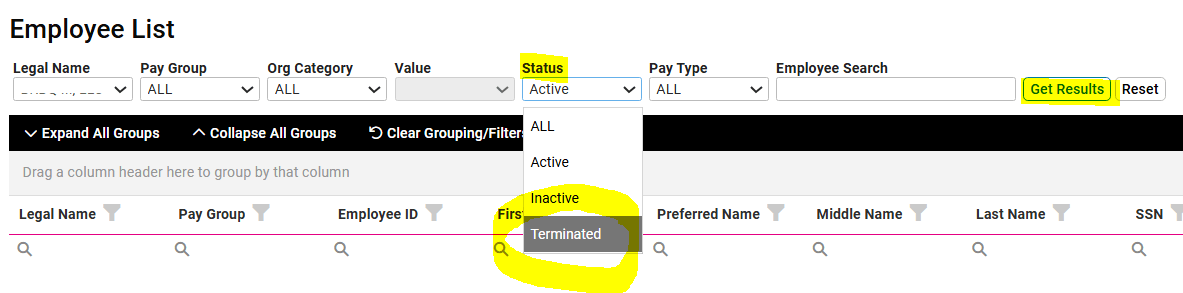
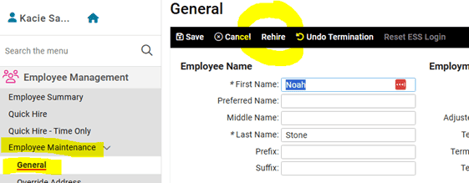
- Select the employee you are rehiring from the list, the go to EMPLOYEE MANAGEMENT > Employee Maintenance > General.
- Click Rehire in the black bar.
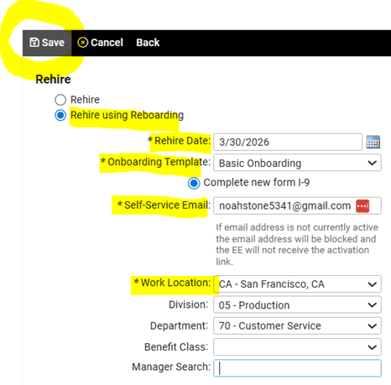
- The "Rehire using Reboarding" radio button should be defaulted to selected. Enter appropriate data into each of the following fields:
- Rehire Date - This will default to the current date, so be sure to update as appropriate.
- Onboarding Template - Select from the drop-down list. (These are the same templates used for onboarding new employees and will include all documents and forms requiring acknowledgment, if applicable.)
- Self-Service Email - This field may be pre-populated with the email address that was previously associated with the employee's profile, which is likely their Self-Service username. If the employee no longer uses this email address, you can update it here, but please note that doing so will create an additional Self Service login account.
- Work Location and any Organizational Values listed - Update as needed.
- Click Save in the black bar.
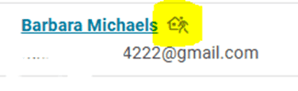
The employee will receive an onboarding email with a link to the employee onboarding wizard where they can review and update all previously saved information. They will be listed on your EMPLOYEE ADMIN TOOLS > Employee Administration > Pending Employees menu, similar to your other new hires, and marked with a small "returning to work" icon next to their name for easy identification.
Once they have completed all sections of their onboarding wizard, you will receive an email notifying you that can finish the process by completing the Client New Hire Wizard, just as is done with each new hire.
NOTE: Employees in the reboarding status cannot have their profile updated until the process has been fully completed. Additionally, while they can fill out their reboarding information, access to their Self-Service account will be temporarily limited during this time.

 What Else Should I Know?
-
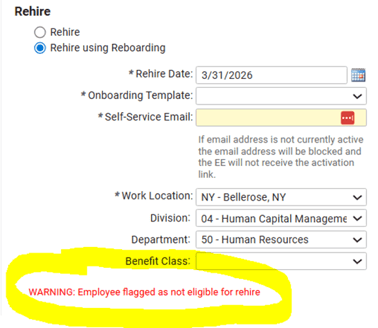
If the "Eligible for Rehire" box was left unchecked when the termination record was entered for this employee, you will see a red warning message listed at the bottom of the rehire screen. While this warning will not prevent you from being able to proceed with the rehire process, it is meant to serve as a helpful reminder to consider the reasons that led to the employee's original termination.
-
If you are not currently using the electronic onboarding service, you can still rehire terminated employees by selecting the "Rehire" radio button option, entering in the appropriate Rehire Date and Employment Category, and clicking Save in the black bar. The employee's record will be active immediately, however we highly recommend that you review the following areas under the for accuracy, as this information may have changed:
-
-
Pay Rate - found under EMPLOYEE MANAGEMENT > Employee Pay > Salary.
-
Direct Deposit information - found under EMPLOYEE MANAGEMENT > Employee Pay > Direct Deposit.
-
Scheduled deductions - found under EMPLOYEE MANAGEMENT > Employee Pay > Deductions.
-
Paid Time Off balances - found under EMPLOYEE MANAGEMENT > Employee Benefits > Accruals > Leave Accruals.
-
The employee can update his or her W4 directly from their Self-Service account using the "Update Taxes/Tax Update Wizard" menu.
CLICK HERE TO WATCH: Initiating Electronic Onboarding and Reboarding in isolved