
Here are step-by-step instructions for how to update an employee’s record in isolved upon termination:
-
Go to EMPLOYEE MANAGEMENT > Employee Maintenance > General.
- Select the employee from your Employee List.
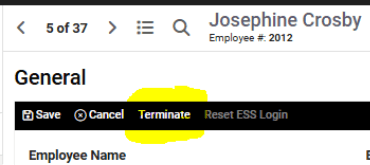
- Click the Terminate function in the black bar to open the Termination details screen.
- Enter the appropriate Termination Date.
- Select the applicable Termination Reason from dropdown list provided.
- Check the Eligible for Rehire box, if applicable, or leave box unchecked if not eligible.
NOTE: Marking an employee as "not eligible for rehire" will not prevent you from being able to rehire them in the future. It will simply produce a warning message as a reminder of this selection.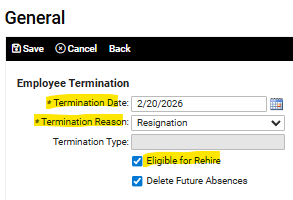
- Leave the Delete Future Absences box checked to safeguard against having terminated employees incorrectly paid for pending approved absences after termination date.
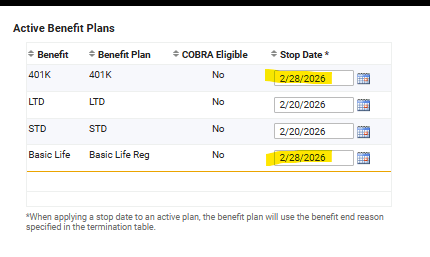
- Enter Stop Dates for any Active Benefit Plans (if different from Termination Date).
- Click the Report button, as this is the only place this report can be generated. It will display the following helpful information:
- Any Company Issued Assets (if set up to track inside of isolved)
- Any active Garnishments (for which you will need to contact the issuing agency(s) of the employee's termination)
- Active benefit plans (listed as Deduction amounts)
- NOTE: This is the ONLY screen that this report is accessible, so we do recommend you take a quick minute to review before saving the termination record.
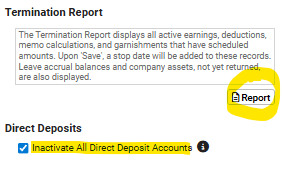
- You can choose to Inactivate All Direct Deposit Accounts if you would like any final payments to be made via live check only, otherwise leave box unchecked.
- Click Save in the black bar.
The terminated employee is removed immediately from your Active Employee List, but they will remain listed on your Time Entry Grid until their Termination Date falls outside of your pay period.
IMPORTANT NOTE: Salaried employees will receive their normal full pay-period salary unless their hours are overridden on the Time Entry Grid for just the days they were active in the final pay period. Please see this article for more information on how to adjust salaried employees' pay, if needed.
 What Else Should I Know?
-
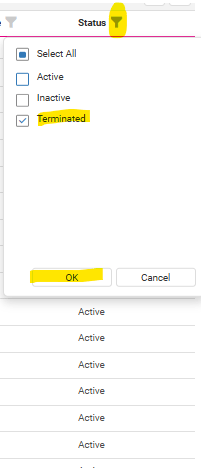
Terminated employees are removed from the Active Employee List, however, their information remains in isolved. To access terminated employees from Employee List, click the filter icon next to Status heading, check Terminated, and click OK. The list will update with terminated employees.
-
In order to rehire a terminated employee, you will first need to access their profile from your Terminated Employees List (as shown above). This article will walk you through the steps of how to rehire terminated employees.