
Here are step-by-step instructions for how to add an hourly employee’s missing pay rate to an existing salary record in isolved:
- Go to EMPLOYEE MANAGEMENT > Employee Pay > Salary.
- Select the employee from the Employee List.
- If there is current salary record, but no Hourly Rate is entered, click Edit to open the existing salary record.
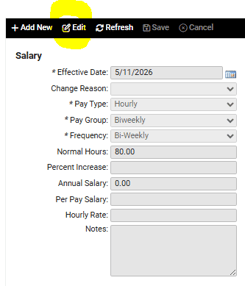
- If the Pay Type is not set to Hourly, select it from the dropdown.
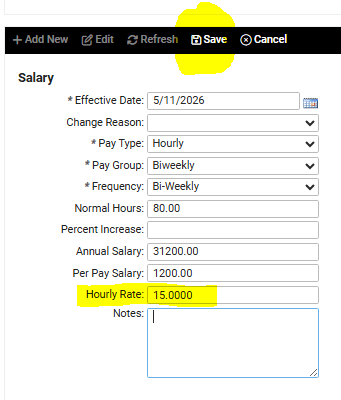
- Enter the Hourly Rate in the Hourly Rate field and tab or Enter. The other rate fields (Annual Salary, Per Pay Salary) will auto-populate.
- Click Save in the black bar.
- Return to the PAYROLL PROCESSING > Process Payroll screen, click the Preview button to refresh the data, and generate the Payroll Register report to review the employee's paycheck.
 What Else Should I Know?
-
If you have already processed payroll, and the employee did not receive a paycheck due to the missing rate, reach out to your Client Success Specialist at help@whirks.com. They will assist you with running an off-cycle payroll (processing fee will be assessed) to direct deposit the funds to the employee on the next business day; or they can help you enter a manual check record, so you can make payment to the employee directly outside of isolved.