
Here are step-by-step instructions for resetting the password for your Client User account:
- Navigate to https://whirks.myisolved.com.
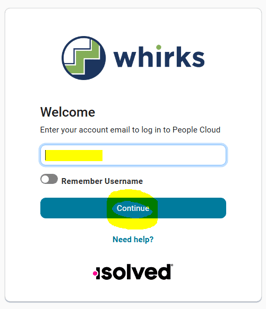
- Enter your Username (the email associated with your account) and click Continue.
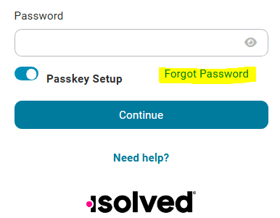
- When prompted for Password, click Forgot Password link.
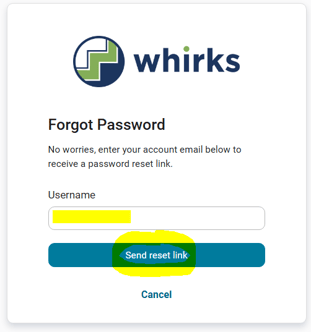
- Re-enter Username and click Send reset link.
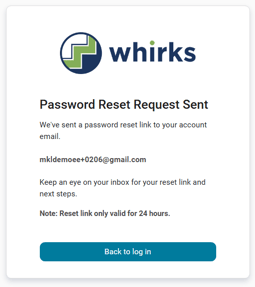
- A password reset link will be sent to your account email address. The link is only valid for 24 hours. If you do not see the email in your inbox, please check your Junk and Spam folders.
- Click the reset link in the email.
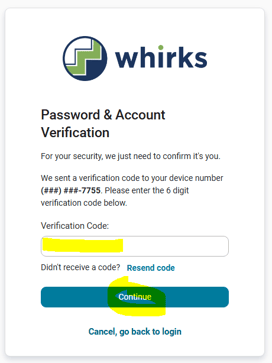
- A verification code will be sent to the device number or email address associated with your account. Enter the Verification Code and click Continue.
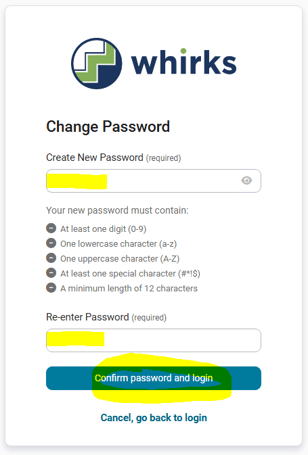
- You will be prompted to Create New Password and Re-enter Password. Plaese note the password requirements noted on the Change Password card. Once entered, click Confirm Password and login.
- Return to https://whirks.myisolved.com and login with your new credentials.