Here are step-by-step instructions on how to update an employee's Employment Category in isolved:
-
Login in to isolved and go to EMPLOYEE MANAGEMENT > Employee Maintenance > Employment.
-
Select the employee from the list.
- Click Add New in the black bar.
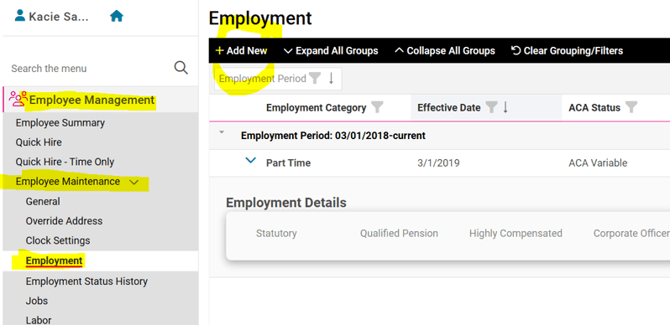
- Use the drop-down menu to enter the Employment Period.
-
Update the Effective Date to reflect when the actual date this change takes effect.
-
Select the new Employment Category from the drop-down.
-
A Change Reason will only be available in the drop-down menu if you have this feature built out. This field is optional, but if you would like to have a standard set of options for reporting purposes, please see the "What Else Should I Know?" section below.
NOTE: The "Create 'Change in Employment Category' life event record" checkbox will only need to used if your company is currently using isolved for benefits Open Enrollment. By checking this box before saving, the employee will receive an email notifying them that a Special Enrollment Period has been made available to them, and direct them to make their selections within their Self-Service account.
8. Click Save in the black bar.
NOTE: If the employee is also changing from "Hourly" to "Salary," that change must be done on EMPLOYEE MANAGEMENT > Employee Pay > Salary. For more guidance on how to make that change, please refer to this article.
 What Else Should I Know?
-
Employment Category is an important data point in isolved, as it directly effects the following items:
-
ACA Compliance: The employment category drives Affordable Care Act (ACA) reporting. An incorrect classification can lead to inaccurate 1094-C and 1095-C filings.
-
Benefit plan eligibility: Many health insurance benefits and PTO/Leave accrual plans include an employee's employment category as a qualifier for participation. If you do not see the desired plan listed for the employee when activating a health insurance or leave accrual plan, it is likely due to them not falling within the required eligibility rules.
-
Reporting: Many standard and custom reports include details from the Employment screen. Incorrect data here affects every report that references it.
-
- Change Reasons can be customized to match your company's needs.
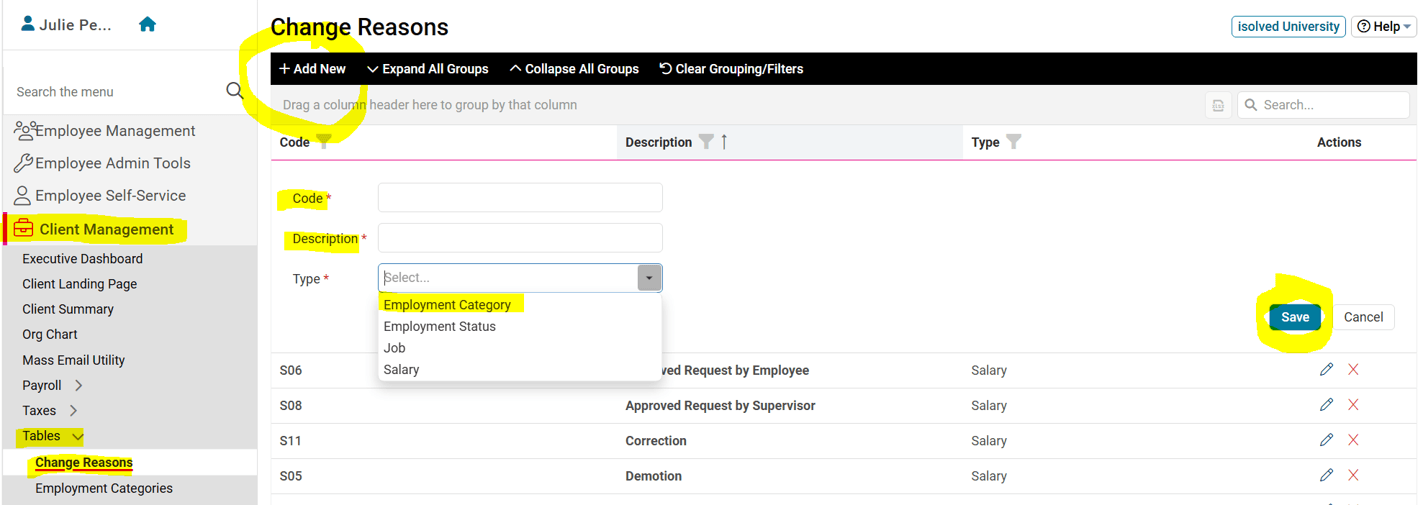
- To add change reasons, go to Client Management > Tables > Change Reasons. Click Add New in the black bar. A Code and Description are required, and the Type selected from the drop-down menu will specify which screen that reason will be made available on.
- Currently available Change Reasons can be edited by clicking the pencil icon on the right.
- Remember to click Save in the black bar after you have added or edited an entry.