
When bringing on a new employee, it's common for their hire date to fall outside of the current payroll period. Depending on their actual start date, it is possible that the hours they should be compensated for actually align with you next payroll cycle. The time entry grid only includes those employees who are officially recorded as active within the current payroll period.
HOW DO I VIEW THE CURRENT PAY PERIOD DATES?
-
Go to PAYROLL PROCESSING > Payroll Entry < Time Entry Grid.
-
At the top of the screen, you will see the date range for the payroll currently being processed.

In the instance above, if the employee's hire date is set for 06/15/2026, they would not appear on the time entry grid until the following payroll period, as the system recognizes that she has not yet started working. Additionally, depending on the lag time between the close your pay period and the actual check date, it could take up to a couple of weeks before they receive their first paycheck.
NOTE: While the employee won't show on the time entry grid, they will still show on your active employee list/summary.
WHAT IF I ENTERED THE WRONG HIRE DATE?
If the employee truly did work during these pay period dates, but the wrong hire date was entered, the hire date will need to be updated on their main profile, salary record, and employment history section within isolved by following these steps below:
General Employee Profile
- Go to EMPLOYEE MANAGEMENT > Employee Maintenance > General.
- Select the employee form the Employee List.
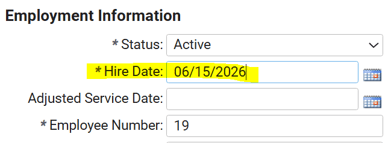
- Under the Employment Information section, edit the Hire Date field, and click Save in the black bar.
- Next, go to EMPLOYEE MANAGMENT > Employee Pay > Salary.
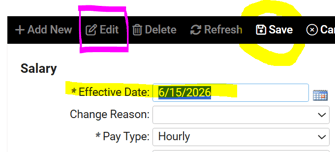
- Click "Edit" in the black bar. (See note below)
- Change the Effective Date to the corrected date of hire and click Save in the black bar.
-
Finally, go to EMPLOYEE MANAGEMENT > Employee Maintenance > Employment History.
NOTE: The Effective Date showing will be the original (incorrect) hire date, but the Employment Period dates should reflect the change that was entered on the General screen.
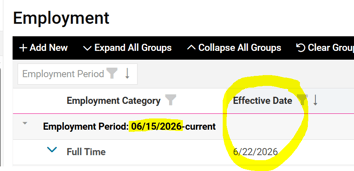
- Click on the pencil icon at the far right to edit this record.
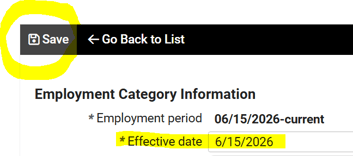
- Enter the corrected hire date in the Effective Date field and click Save in the black bar.
NOTE: We only recommend using the "Edit" feature for updating Salary records when an actual error in the information has occurred (as with a wrong hire date). For all other changes to an employee's Salary record, we recommend using the "Add New" button to create an entirely new record. This will allow the full history of changes to be preserved on this screen for easy reference or review, as needed, in the future.
 What Else Should I Know?
If you need to pay your employee before their first official paycheck is issued, you can write a manual check for a small advance. This will ensure they receive some payment. When you process their first paycheck, be sure to record this amount as an Advance deduction.