
Here are step-by-step instructions for how an employee can reset their password:
RESET USING "FORGOT PASSWORD" LINK (Employee)
- Go to https://aee.myisolved.com.
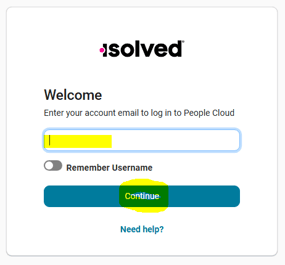
- Enter the Username (email address associated with the account) and click Continue.
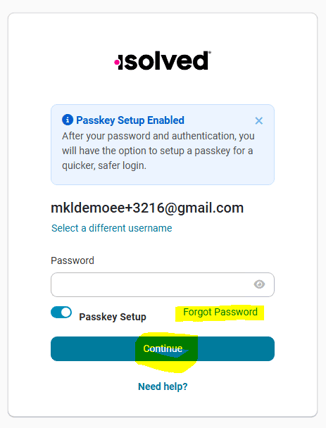
- Click Forgot Password and Continue.
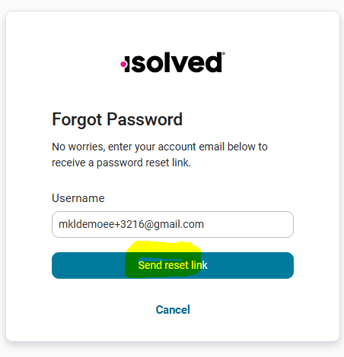
- Reenter Username and click Send reset link.
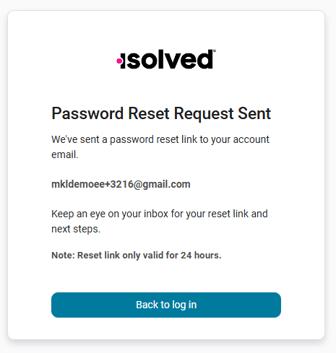
- An email with Password Reset Link will be sent to the employee. The link is only valid for 24 hours. Click the link in the email to proceed with password reset.
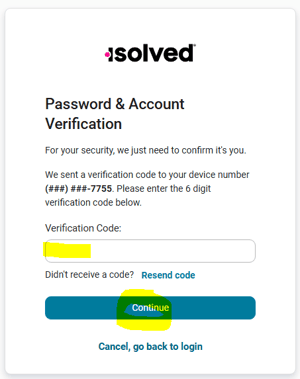
- A text with Verification Code will sent to the device number or email address associated with the account. Enter the Verification Code and click Continue.
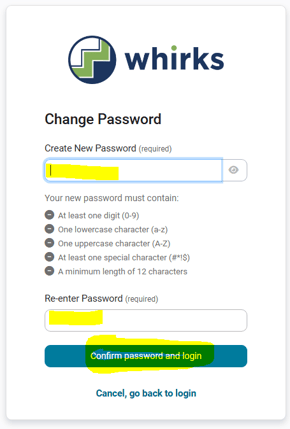
- Create New Password and Re-enter Password. The new password must contain at least one digit (0-9), one lowercase character (a-z), one uppercase character (A-Z), at least one special character (#*!$), and a minimum of 12 characters. Click Confirm password and login.
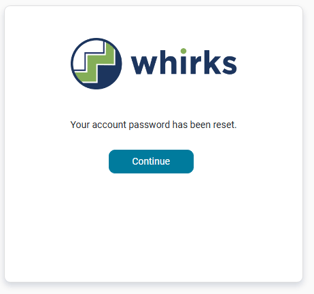
- Click Continue to return to login page and log in with new credentials.
CLIENT ADMIN USER INITIATES FULL ESS RESET
-
Log into Client User account and go to EMPLOYEE MANAGEMENT > Employee Maintenance > General.
- Select employee from Employee List.
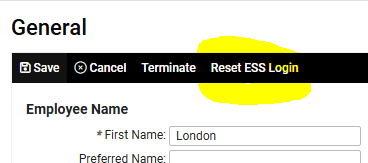
- Click Reset ESS Login in black bar.
- An email with registration link for setting up new login credentials will be sent to the employee.
 What Else Should I Know?
Does the employee's email address associated with their self-service account need to be updated? A Client User will need to initiate this process by following steps below:
- Go to EMPLOYEE MANAGEMENT > Employee Maintenance > General.
-
Select the employee from the Employee List.
-
Uncheck the blue Enable Self-Service Access box.
-
Click Save in the black bar. This deactivates the current ESS email.
- Enter the new Self-Service Email address.
- Recheck the Enable Self-Service Access box
-
Click Save in the black bar.
-
An email with registration link for setting up the new ESS login credentials will be sent to the employee's new email address.