Here are step-by-step instructions to update a PTO balance for your employees in isolved:
- Log into your isolved Admin User account at https://whirks.myisolved.com.
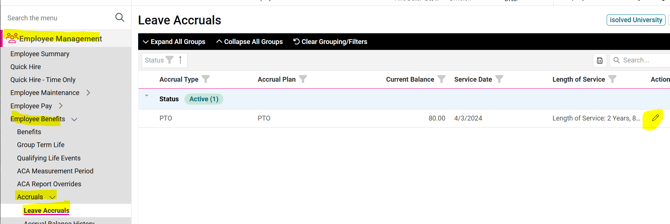
- Navigate to EMPLOYEE MANAGEMENT > Employee Benefits > Accruals > Leave Accruals.
- Select the employee from the Employee List.
- To edit the record, click on the pencil icon at the far-right to open the edit screen.
- Enter the new balance in the Update Balance field.
- Enter any applicable notes in the Notes box (though this is optional).
- Click Save in the black action bar.
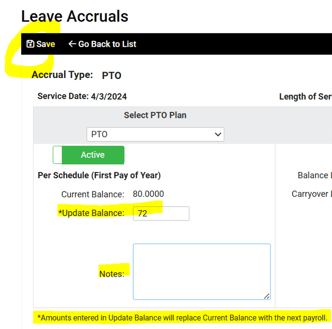
NOTE: Amounts entered in Update Balance field will serve as the beginning balance on the next payroll run, however, the Current Balance displayed on the Leave Accruals screen will not update until the next payroll is processed.
Conversely, the amount entered in the Update Balance field will display immediately within the employee's Self Service account so that requests can be made based on the updated information right away.
 What Else Should I Know?
- If an employee does not appear to be accruing PTO hours correctly, please review the Length of Service and Rate values listed on the right side of the Accrual Type information box.
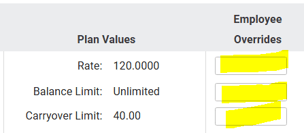
- If your plan allows for one-off adjustments to an employee's accrual Rate, Balance Limit, or Carryover Limit, the fields listed under the Employee Overrides column will be open to allow you to enter the values that are accurate for that employee. The entered amounts will remain in effect until changed or removed.