
Reviewing the following reports before sending your payroll to Whirks for processing will help ensure that all employees are paid correctly and that you have a clear understanding of the necessary funding.
How to Access Your Payroll Preview Reports
-
Once you have entered all hours and earnings into your Time Entry Grid, go to PAYROLL PROCESSING > Process Payroll.
- Click the Preview button on the Preview Payroll line. This will cause all available reports to be generated, and you will see the Payroll Preview Reports section appear at the bottom of the Process Payroll section.
- Click the down arrow in the drop-down list to select the desired report, then click Go.
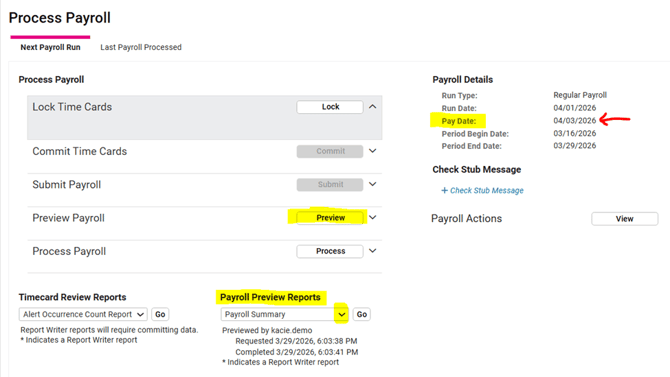
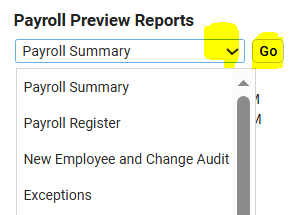
NOTE: If you are using isolved's Timekeeping service, you will first need to "Lock" and "Commit" your timecards before clicking the Preview button to review your reports. Committing timecards is what brings what brings the data from your employees' timecards into the Time Entry Grid for processing.
1. The EXCEPTIONS Report
We recommend beginning your review with the Exceptions report, which is specifically designed to highlight any items that may indicate errors in your payroll. Therefore, starting here is the most efficient way to uncover areas that may need your attention.
NOTE: While the errors and issues highlighted in this report will not stop you from processing payroll as is, it is important to be aware of them and make corrections where possible.
Here is a brief list of some of the things you may see displayed on your Exceptions report:
-
"Invalid SSN for W-2" - If you are seeing this error, it is imperative that the employee's SSN is updated as quickly as possible to prevent errors on company Quarterly Tax Returns and the employee's W2. This is done by going to EMPLOYEE MANAGEMENT > Employee Maintenance > General, selecting "SSN" from the drop-down in the ID Type field, then entering the corrected SSN in the Update SSN field, and clicking Save in the black bar.
-
"Time Entry Hours exceed threshold" - This error displays when an hour value has been entered that is greater than the normal hours for your pay frequency, such as accidentally entering a $100 Bonus into the PTO Hours column. It is important to note, however, that it will not display simply based on the total hours listed for the employee. For example, if the employee has 80 Regular hours, 35 Overtime hours, and 15 PTO hours, they will not be listed on your Exceptions report even though they have 130 total hours for a bi-weekly pay period. We recommend returning to your Time Entry Grid to verify that all hours have been entered into the correct earnings columns.
-
"Tax Variances" - This error will show when the actual amount deducted from the employee's check for either Social Security or Medicare (FICA taxes) is less than the amount calculated. This occurs when an employee's paycheck includes taxable earnings that are not actually paid, combined with a lack of sufficient paid wages to cover the total tax liability. (For example, a tipped-wage employee with $55 of paid earnings but $750 of non-paid Reported Tips.) The system will continue to attempt to true-up the employee's FICA taxes for correct YTD amounts on following paychecks.
-
" Hourly Employees With Base Rate Minimum Wage Exceptions" - This section will notify you when an employee's hourly rate is less than the mandated minimum wage in their work location. (Please review this article on how to update your employee's pay rate.)
-
"Employee is located in a jurisdiction that is not authorized" - This alert appears when an employee's home address falls within a tax jurisdiction where your company does not currently have an active withholding account. In many situations, setting up a withholding account for their state of residence is not mandatory (except for remote workers). However, having this account will provide your employee(s) the convenience of having their state income taxes withheld from each paycheck, similar to how federal income taxes are deducted. If you would like Whirks to assist you in applying for a new state withholding account, please contact your CSS.
-
"New Hires NOT Included in New Hire File" - This section displays any new hires that did not have the "Include in Next New Hire Report" box checked when onboarded. This typically occurs if the employee is entered into the system using the Quick Hire menu or is rehired without using the electronic onboarding/reboarding function. This should be corrected before submitting your payroll for processing to ensure you remain compliant with proper reporting of your new hires. To do so, go to EMPLOYEE MANAGEMENT > Employee Maintenance > General, check the "Include in Next New Hire Report" box, and click Save in the black bar.
-
"Missing Tax ID" - This alert will display until we receive the Tax ID for the jurisdiction that was applied for earlier. Please be sure to send over any correspondence you receive from the relevant state tax department to ensure that we have all necessary information to accurately file your quarterly taxes.
2. The NEW EMPLOYEE AND CHANGE AUDIT
This report will display all changes made to employees' records since the last processed payroll, such newly hired and recently terminated employees, updated pay rates and/or deductions, W4 changes, and added or deleted direct deposit accounts.
The primary reason we recommend reviewing this report is to ensure there has not been any fraudulent activity with regards to changes made to employees' direct deposit accounts. This can be found in the "Activated Direct Deposits" section toward the end of the report.
It is possible that the employee's Self Service login credentials were falsely obtained and used to enter a new direct deposit account to their profile, set to receive 99% of an employee’s net pay. Typically, these accounts involve Chime paycards with the routing number 031101279 or 103100195.

If you see anything that appears suspicious within this section, we highly recommend reaching out to your employee directly to verify before submitting your payroll for processing.
3. The PAYROLL REGISTER
This report displays all checks that have been created for this payroll, typically in alphabetical order by employee. If an employee has multiple checks -- for example, their "Regular" check, an "Additional Check" to pay out a bonus separately, and a "Manual Check" to record a payment that was made to the employee outside of payroll -- each one will display under that employee's name.
Each check record will list the following details for you to review for accuracy before submitting your payroll for processing:
-
Rate of pay
-
Hours entered (by earning type)
-
Scheduled (automated) earnings
-
Scheduled (automated) or manually entered deductions
-
Taxes
-
Net Pay Amount
-
Payment by Direct Deposit of Check
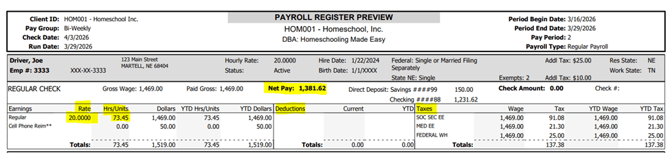
If any information does not appear to be correct, please return to the Time Entry Grid (or Individual Time Entry) to update as needed. If you are unsure how to make the corrections needed, please reach out to your CSS.
4. The PAYROLL SUMMARY
Once all payment details have been reviewed for accuracy, this report will provide you with the exact amount that needs to be available in your company bank account in order to fully fund this payroll. This information is found on the top half of the first page in the Payroll Funding section.
You will see two "Total" lines listed -- one noting the "Total ACH Debit" amount and scheduled "Impound Date," and one noting the "Total Payroll Funding (all items)."
The amount listed on the "Total Payroll Funding" line must be available before the Check Date specified in the upper left-hand corner. This amount includes all payments to employees (whether by check or direct deposit), all applicable taxes, and any payroll billing fees.
The "Total ACH Debit" amount is how much will be drafted from your company bank account on the Check Date listed, however it will occur in three separate transactions: one for the "Direct Deposit" amount listed (net payments to your employees), one for the Tax Liabilities (which is both employee and employer taxes combined) and one for our Whirks Payroll Billing (which is typically only included with the first payroll of each month).
NOTE: The amount listed on the "Checks" line will not be drafted, as these funds will be withdrawn from your account when the check is cashed by the employee.
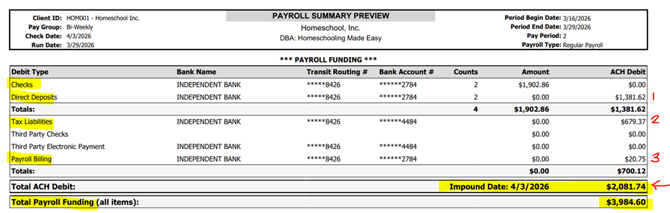
A breakdown of all taxes for both employees and employer can be found on Page 2 of this report, while Page 3 will list just the employer taxes.
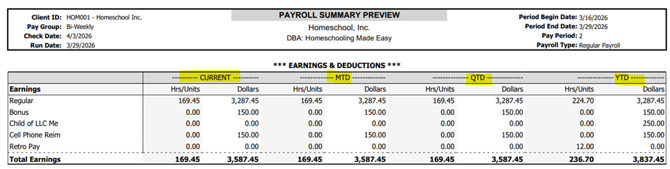
Page 4 displays totals for all Earnings, Memo Calculations, Deductions, and Taxes for the "Current" payroll, as well as "MTD," "QTD," and "YTD" amounts.
After thoroughly reviewing all of the essential Preview Reports and confirming that your payroll is 100% complete and accurate, you can proceed to submit your payroll for processing by selecting the designated button on your Process Payroll screen.
 What Else Should I Know?
The four reports discussed in this article are primary ones for ensuring your payroll is correct and complete; however, there are a number of other useful reports available in the Payroll Preview Reports List:
-
Retirement Report - If your retirement plan is not currently set up for automated data transmission, this report will provides you with the details for all employee contribution and employer match amounts for this pay period. This report also displays each employee's current election value along with month, quarter, and year-to-date totals.
-
Payroll Invoice - If you have any questions regarding the Payroll Billing amount shown on your Payroll Summary report, this report will provide you with an itemized breakdown of that total. If you have any questions regarding a charge listed, please reach out to your CSS to discuss.
-
Labor Allocation Summary - This report provides the breakdown of your payroll expenses by the Organizational Values you have setup (such as Department or Location). This report can help give you insight as to how your labor costs are divided.
Did you know that customized reports can be created in isolved under REPORTING > Report Writer and added to your Payroll Preview Reports list? "Payroll: 301" courses in the isolved University will walk you through the steps to get started!