
Here are step-by-step instructions for updating an employee’s direct deposit information in isolved:
INACTIVATE A DIRECT DEPOSIT ACCOUNT
- Go to EMPLOYEE MANAGEMENT > Employee Pay > Direct Deposit
- Select the employee from your Employee List.
- Click the pencil icon under the "Actions" heading at the far right to open the edit screen.
- Select “Inactive” from the drop-down menu in the Status field.
- Click "Save" in the black bar.
ADD A NEW DIRECT DEPOSIT ACCOUNT
- Go to EMPLOYEE MANAGEMENT > Employee Pay > Direct Deposit
- Select the employee from your Employee List.
- Click Add New in the black bar.
- Set the Status field to "Active."
NOTE: We do not prenote accounts, so please do not make that selection. - Set the Account Type field to "Checking" or "Savings," as applicable.
NOTE: If a paycard is needed, we recommend having Whirks issue your employee a Rapid! paycard so we can assist with any troubleshooting issues. If the employee uses his/her own paycard, we will not be able to provide assitance with lost/stolen cards. See "What Else Should I Know?" section below. - Set the Sequence field to "Remaining Net." (This will automatically disable the Amount and Percent fields, as they are only applicable for partial deposits.)
NOTE: Sequence numbers would only be used if an employee would like to have their pay deposited into multiple accounts. See "ADDING ADDITIONAL ACCOUNTS" below. - Set the Frequency field to “Every Pay.”
- Enter the Routing Number.
- Enter the Account Number.
- The Description field can be used for account identification, but including this information is optional.
- Click Save in black bar.
- You may be prompted to enter a Verification Code, which will be sent to the email address associated with your admin user account in order to complete the saving process.
- Click "Continue." (A green confirmation pop-up displays when save is successful.)



EDIT EXISTING DIRECT DEPOSIT ACCOUNT NUMBER
- Go to EMPLOYEE MANAGEMENT > Employee Pay > Direct Deposit
- Select the employee from your Employee List.
- Click the pencil icon under the "Actions" heading at the far right to open the edit screen.
- Enter the corrected account number in the Update Acct. Number field.
- Click Save in the black bar.
- You may be prompted to enter a Verification Code, which will be sent to the email address associated with your admin user account in order to complete the saving process.
- Click "Continue." (A green confirmation pop-up displays when save is successful.)

ADDING ADDITIONAL ACCOUNTS
- Follow Steps 1-5 in the "ADD A NEW DIRECT DEPOSIT ACCOUNT" section above.
- Set the Sequence field to '1' (or 2, etc., depending on how many accounts the employee wishes to have his/her pay split between.)
- Enter either the exact dollar Amount or Percent of net pay to be deposited into this account using the appropriate field.
- Enter the Routing Number.
- Enter the Account Number.
- The Description field can be used for account identification, but including this information is optional.
- Click Save in black bar.
- You may be prompted to enter a Verification Code, which will be sent to the email address associated with your admin user account in order to complete the saving process.
- Click "Continue." (A green confirmation pop-up displays when save is successful.)

NOTE: It is important to have one account set to the Sequence of "Remaining Net" to ensure that the full check amount is deposited. If multiple accounts are set up using only Sequence numbers and percentages (such as "25%" and "75%), it is possible that the calculation for each percentage will be rounded down, leaving a single penny that will be paid out on a live check.
 What Else Should I Know?
-
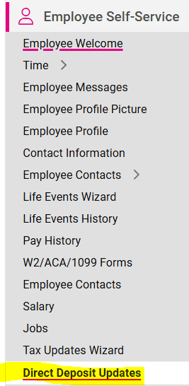
Employees can update their own direct deposit information directly from their Self-Service account. If logging in from the whirks.myisolved.com URL, they will go to EMPLOYEE SELF-SERVICE > Direct Deposit Updates.
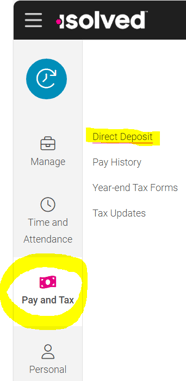
If logging in from the isolved app, they will go to Pay and Tax > Direct Deposit.
If you prefer that your employees not make these updates directly, that access can be removed. Alternatively, it is also possible to set up an approval workflow that will allow any account changes to be reviewed before they are saved in the system. Please contact your Client Success Specialist if you would like to make either of these adjustments.
- Paycards provide a convenient solution for employees who may not have an active bank account for direct deposit. Use this link to access additional information about the paycard options that Whirks can offer to meet your needs.
