
Mistakes happen, whether hours were entered incorrectly, an employee was left off payroll entirely, or wages were calculated at the wrong rate. The good news is that isolved gives you several ways to correct the issue. Below are the three options, along with step-by-step directions for each.
Run a Special Payroll
A Special (off-cycle) payroll will allow the missed wages to be direct deposited to the employee the next business day.
NOTE: Your Client Success Specialist will need to set up a special payroll before you enter information. Additionally, there is a one-time $25 Additional Processing fee.
How to Enter Pay on a Special Payroll
Once your CSS has set up the special payroll, follow the steps below to enter the employee's pay:
- Go to Payroll Processing > Payroll Entry > Individual Time Entry.
- Select the employee from your Employee List and click Add New in the black bar.
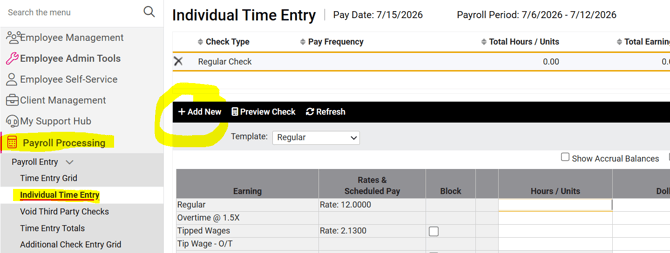
- In the Check Type field, use the drop-down menu to select the appropriate check type:
- If all wages were missed for the employee on the original payroll, choose "Additional Check." This will allow for all scheduled deductions to be applied to this check without additional entry.
- If only a portion of the employee's wages were missed on the original payroll, choose "Additional Check - No Deductions." This will prevent any scheduled deductions that occurred on the original check from being deducted again.
- All other fields that populate can be left blank.
- Click Save in the black bar.
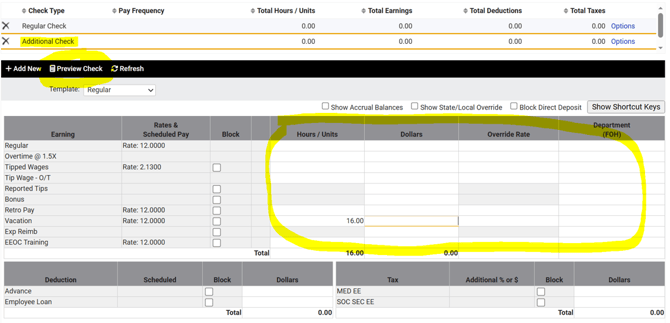
- Back on the employee's Individual Time Entry screen, click the "Additional Check" at the top. (It should be outlined with gold bars.) Enter the applicable earnings in the grid below.
- Click Preview Check in the black bar to ensure all check details are correct.
- Go to PAYROLL PROCESSING > Process Payroll to preview reports and process the payroll as normal.
NOTE: Only Additional Checks are processed on Special Payrolls. If you are not seeing the information you added to the employee's Individual Time Entry screen, it is possible the information got entered into their "Regular Check" grid. Be sure that the Additional Check is the one outlined in gold bars when entering the data.
Write a Physical Check and Enter It as a Manual Check
If you've decided to pay the employee outside of isolved, for example, by writing them a manual check or paying cash, you'll still need to record it in isolved so that all wages and taxes are accurate on the employee's W-2.
How to Enter a Manual Check
Follow Steps 1-7 above to add an Additional Check record.
On the Preview Check screen, enter the Check Date, Period Begin Date, Period End Date, and Check Number (optional).
Click the Post As Manual.
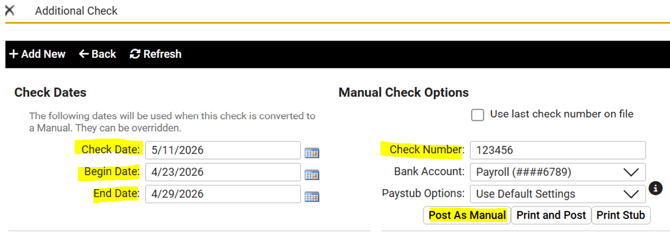
NOTE: You should now see the check listed at the top of the employee's Individual Time Entry screen displaying as "Manual Check" with the applicable check date listed. If it still shows as an "Additional Check," the Post As Manual step was missed, and a payment will be generated for the employee.
Include the Missed Wages on the Next Scheduled Payroll
If the employee is ok with waiting until the next regular payroll to receive payment for the missed wages, this is the simplest option when timing allows. The missed wages can be recorded one of two ways:
-
Simply include and missed hours or earnings on the employee's Regular Check -- or,
-
Enter the missed hours or earnings on an Additional Check. If this option is used, the employee will receive two separate deposit amounts on check date. This can be a useful way of displaying to the employee that the missed wages have been paid.
NOTE: The Retro Pay earning can be used to clearly display payment of missed wages, as well. This earning can be accessed from the employee's Individual Time Entry screen by changing the Template field above the black bar to "ALL." The Retro Pay earning will be listed towards the bottom of the Earnings grid. You can enter just the hours missed in the Hours column, if applicable, or just the gross wages missed in the Dollars column. However, if the missed wages were something other than regular wages (for example, a Bonus, Commission, or Tipped Wages), it is best to record those as they should have been rather than use the Retro Pay earning.
 What Else Should I Know?
- If wages were missed for several employees, you can setup multiple additional checks quickly and easily from PAYROLL PROCESSING > Payroll Entry > Additional Check Entry Grid.
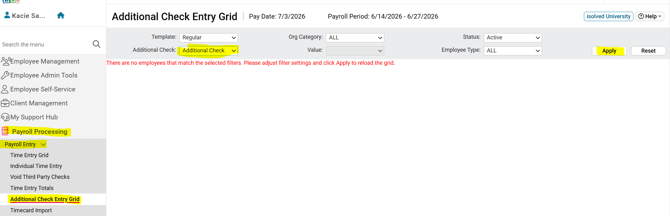
- The screen will initially appear blank. Use the drop-down menu to select the desired Additional Check Type, the click the Apply button.
- A time entry grid will populate where you can enter all check details for all applicable employees at once.
- All information entered on this grid will automatically create an Additional Check record for each employee.
- If you would like to use the Retro Pay earning mentioned above, but do not see it listed after updating the Template to "ALL," please reach out to your Client Success Specialist to get it added into your environment.