
Here are step by step instructions on how an employee can access their pay stubs in isolved:
LOGGING IN USING THE CLASSIC VIEW (https://whirks.myisolved.com)
- Navigate to EMPLOYEE SELF-SERVICE > Pay History
- Select the Check Date desired from the list at the top. This will populate the details for that check below the black bar.
- Click View/Print Pay Stub in the black bar.
- The paystub document will open in a new browser tab where the employee can Save or Print, as needed.

NOTE: An employee must have an active self-service account set up in order to access their pay stub. If any employees have not yet set up their self-service accounts, our article on Self-Service Management will help guide you in this process.
LOGGING IN USING THE EMPLOYEE WORKSPACE (https://aee.myisolved.com) or ISOLVED MOBILE APP:
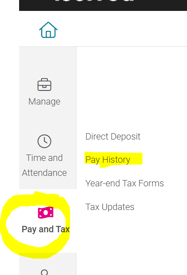
- Select the Pay and Tax menu icon on the left-hand side, then select Pay History from the submenu options.
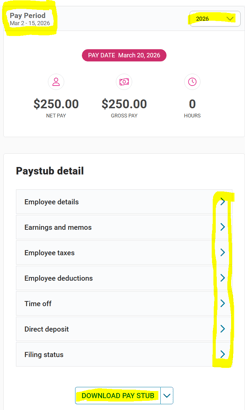
- Select the desired check by using Pay Period and Year settings. This will populate the Paystub Detail will be provided with a categorized list of earnings, taxes, deductions, time off accrual, direct deposit information (if applicable), and W4 status that can be expanded to view individually.
- Click the Download Pay Stub button at the bottom, then click OK. The check stub will open in the pdf application available.
 What Else Should I Know?
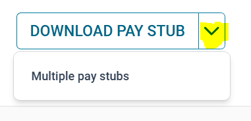
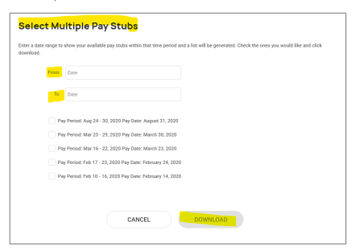
Employees can download multiple pay stubs at one time from the Employee Workspace or isolved mobile app. Simply click the arrow on the right of the Download Pay Stub button and select Multiple pay stubs. This will give them the option to select multiple pay stubs for any date range by checking the box to the left of each check desired, then clicking Download.
NOTE: If an employee is downloading their pay stubs on their mobile phone, they must have their pop-up blockers turned off. Pay stubs will open up in a different tab from the app, and if the pop-up blocker is on, they will receive an error message during the download.