
Here are step-by-step instructions for generating reports for your workers comp audit:
PERIODIC PAYROLL REGISTER
- Go to REPORTING > Client Reports.
- Type "periodic" in the Search field and click Filter button.
- Select the Periodic Payroll Register from the report list.
- Under Filtering enter the From Date and To Date of your audit period (found on your audit notice).
- If you have more than one Legal Company, be sure use the drop-down to select the appropriate one. (All other fields can be left blank.)
- Click Generate Report in the black bar .
- A green confirmation box will pop up at top of screen.
- Click Go To My Reports Queue in black action bar.
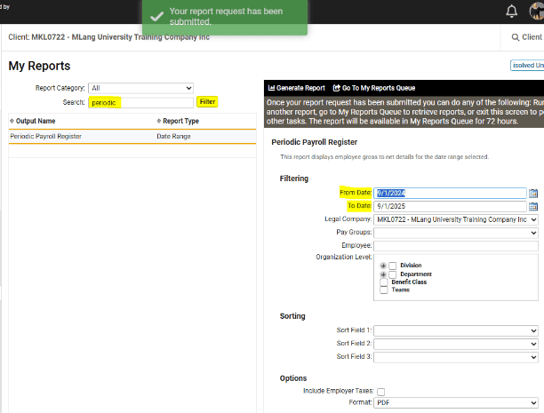
- When report is fully generated, click View Report link to open pdf in separate browser tab.

FEDERAL QUARTERLY TAX RETURNS (FORM 941) and STATE QUARTERLY WAGE & TAX RETURNS
- Go to REPORTING > Return Archive
- Select the Year from the drop-down list.
- Select "All" from the Period drop-down list.
- Select "ALL" from the Federal/State dropdown list provided.
- Click Filter button.
- Click View Report link to open the desired report as pdf in a separate browser tab.
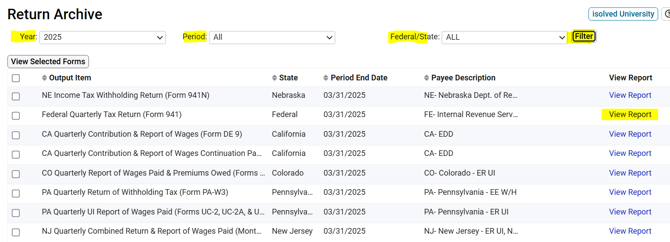
NOTE: If you have multiple state returns, it can be helpful to arrange your Return Archive list by the Payee Description. Simply click on the heading title, and all like returns will be grouped together, making the ones you need easier to find.
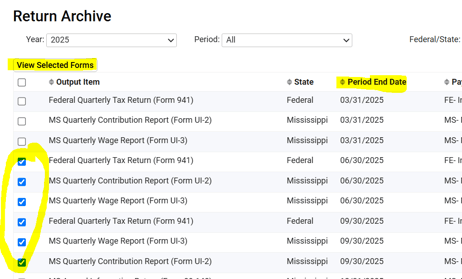
NOTE: If you would like to download both your Federal and State tax returns as a single pdf, simply check the boxes to the left of each return you want included, the click the View Selected Forms button at the top.
 What Else Should I Know?
-
In case you didn’t know, there is another option! A "pay-as-you-go" workers’ comp plan is a modern approach to workers’ comp insurance and makes it easier and more practical for today’s businesses. Pay-as-you-go workers’ comp lets you pay your premiums based on the actual payroll data each time you run payroll, and the Whirks team handles the audit for you! Please reach out to your Client Success Specialist if you would like more information.