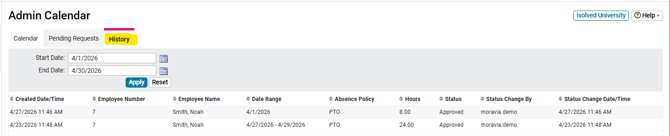
Here are some detailed steps on how to approve time off requests:
Reviewing a Time Off Request as a Client User
- Login to your isolved admin account from https://whirks.myisolved.com.
-
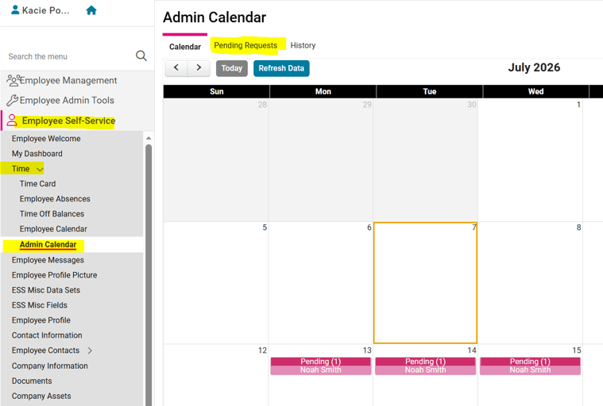
Navigate to Employee Self-Service> Time > Admin Calendar.
-
By default, the Admin Calendar will display in the "Month" view. Pending requests will display on the calendar in bright pink, Approved absences will display in blue, and Processed absences will display in grey.
-
Click on the Pending Requests tab above the calendar.
-
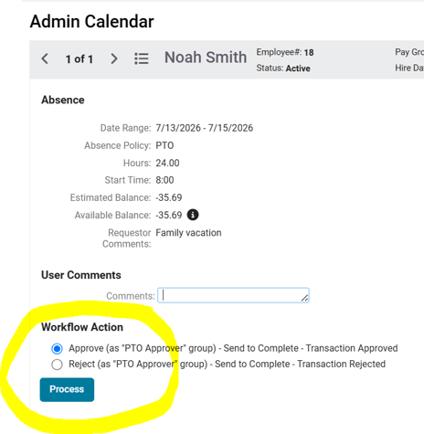
Select the time off request you wish to review from the list. The details for the request will display along with any Comments entered by the employee.
-
In the Workflow Action section at the bottom, select the radio button as desired, and click the Process button.
-
Once the time off request has been approved/rejected, email notifications will be sent to the employee. If the request was approved, the absence will automatically be added to the payroll that contains the dates of the absence(s).
Reviewing a Time Off Request as a Manager/Supervisor
If Managers and/or Supervisors have been given permissions to approve or reject employees' time off requests, they can do so either from the "Classic" view or "Employee Workspace."
Here are step-by-step instructions on how managers and/or supervisors can review an employee's time off request:
In "Classic" View"
-
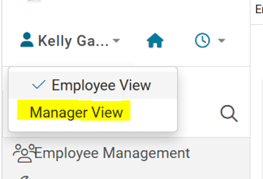
Login from https://whirks.myisolved.com, then select "Manager (or Supervisor) view from the drop-down menu from their name in the top left corner.
-
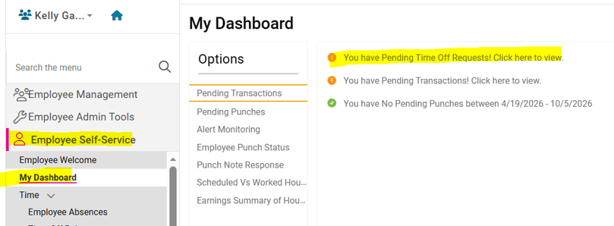
On the EMPLOYEE SELF-SERVICE > My Dashboard screen, click on the link for "You have Pending Time Off Requests!" from the list on the right. (This will take them to the EMPLOYEE SELF-SERVICE > Time > Admin Calendar screen.)
-
Follow all steps listed above for "Reviewing a Request as a Client User."
In "Employee Workspace" View
-
Login from https://aee.myisolved.com or the isolved mobile app.
-
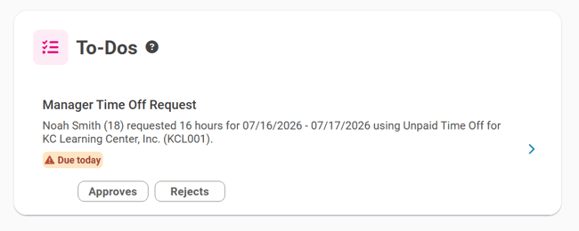
All Time Off Requests will be listed on the To-Dos card, from which they can "Approve" or "Reject" the request either clicking on the buttons displayed, or by clicking on the three action dots on the right (on app).
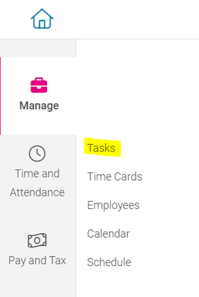
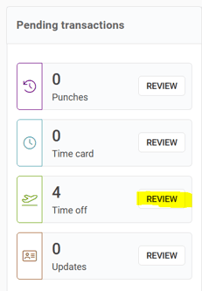
NOTE: If multiple requests are listed, the manager can view all by going to MANAGE > Tasks. In the Pending Transactions section, click the Review button in the Time Off section. Requests can be approved/rejected by clicking directly on the employee's name.
 What Else Should I Know?
-
As with other workflows (such as Onboarding, employee Direct Deposit or Tax Information changes), Time Off Request workflows can accommodate a multi-level review process. For example, if your organization includes both supervisors and managers, an employee can submit their request, which is then reviewed by a supervisor, approved requests are then reviewed by the manager. If desired, a third level allowing for HR admin review for final approval is possible. Please reach out to your Client Success Specialist if you would like to have additional tiers added to your workflow, or discuss creating workflows for other employee changes.
-
The Admin Calendar is used by admins, managers, and supervisors to approve or reject a request for time off into the isolved system. By default, it will open on the "Month" view, but this can be changed "Week" or "Day" displays by using the options in the upper right corner.

-
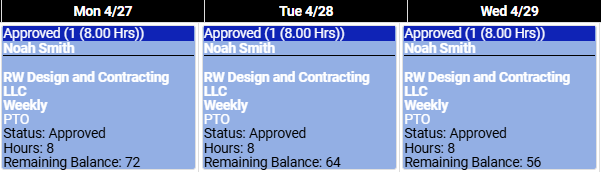
In the "Week" and "Day" views, additional details for all of the pending and approved requests will be displayed:
-
The History tab will show all requests and their status as of the last change.