
If you made changes to your payroll after previewing your payroll reports on the "Process Payroll" screen, but they are not showing up on your reports, don't worry, this is expected behavior in isolved. The Preview button is what tells the system to generate your reports based on the data entered at that point in time. Any changes made after that, such as adding hours, updating earnings, correcting deductions, or editing employee pay rates, will not be reflected on your reports until you click the Preview button again.
How to Refresh Your Reports
After making any changes to your payroll, follow these steps to refresh your reports:
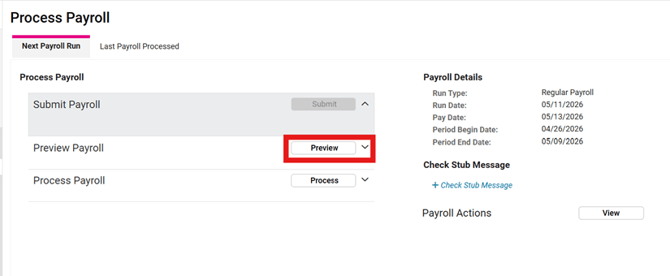
- Go to PAYROLL PROCESSING > Process Payroll
- Click the Preview button on the Preview Payroll line. This tells isolved to regenerate all of your reports with the most up-to-date information.
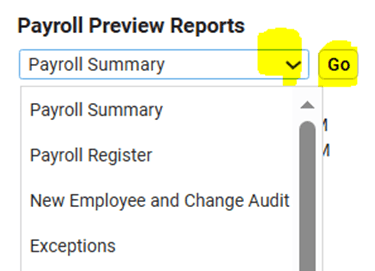
- Once the reports have been regenerated, click the down arrow in the dropdown list to select the desired report, then click Go.
 What Else Should I Know?
- Reports are archived under Reporting > Report Archive and can be retrieved at any time. If you ever need to go back and reference a report from a previous payroll, you can find it there.
- Once payroll has been submitted, any changes made after that will not reflect on that payroll run (e.g., employee direct deposit changes). If you have submitted your payroll for processing, you will first need to reach out to your Client Success Specialist to reset your payroll in order to make any updates, and resubmit.
- If anything still doesn't look right after previewing, contact your CSS for assistance before submitting. It is always better to ask than to submit a payroll you are unsure about.