
Here are step-by-step instructions for how to update an employee's Self-Service email address:
- Log in to isolved and go to EMPLOYEE MANAGEMENT > Employee Maintenance > General.
- Select the employee whose email address needs to be updated.
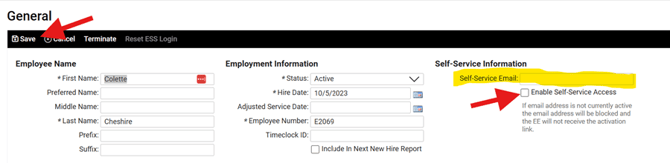
- Uncheck the box next to "Enable Self-Service Access" and click Save. This will open up the Self-Service email field for editing.
- Enter the new email address in the Self-Service Email field.
- Re-check the box next to "Enable Self-Service Access" and click Save.
A new authentication email will be sent to the updated email address. The employee can then follow the link in that email to activate or re-activate their ESS account.
NOTE: This process resets the employee's Self-Service access, meaning the employee will need to set up new login credentials using the link sent to their updated email address.
 What Else Should I Know?
- If the employee did not receive the new authentication email, have them to check their spam or junk folder. System emails are sent from no-reply@isolvedhcm.com, which some email providers may flag. If the email still hasn't arrived, confirm the address is entered correctly on the General screen and that there are no extra spaces before or after it.
-
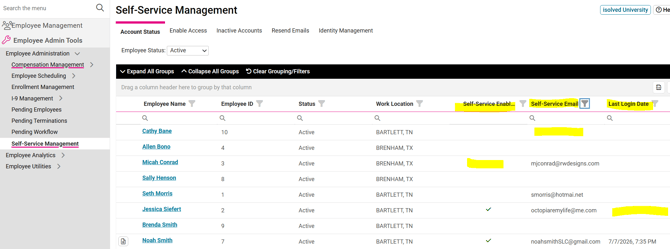
The EMPLOYEE ADMIN TOOLS > Employee Administration > Self-Service Management screen is a quick and easy way to review the status of employees' Self-Service accounts.
-
If a green check mark is not listed in the Self-Service Enabled column, the activation email was never sent. This can be done by clicking on the Enable Access tab at the top, checking the box to the left of the employee's name, then clicking the Process button. The activation email will be sent out immediately.
-
If no email address is listed in the Self-Service Email column, this must be entered on the employee's General screen in the Self-Service Information section. You can quickly navigate to that screen by clicking on the hyperlink that is the employee's name.
-
If no date is listed in the Last Login Date column, the employee has not yet completed the setup of their Self-Service account. If they need the activation email resent, this can be done by clicking on the Inactive Accounts tab at the top, checking the box to the left of the employee's name, then clicking the Process button. A new activation email will be sent out immediately.
-
- Encourage employees to add and verify a mobile phone number in their ESS profile. This will allow them to use SMS verification for future passwords resets, which is faster and doesn't require remembering security question answers. A multi-factor authentication (MFA) app can be connected, as well, for added security.
- If the employee forgets their password after the email change, please refer to this article for additional guidance on how they can reset their password.