
Here are step-by-step instructions for how to setup supervisors or managers in isolved:
ORGANZIATION SUPERVISOR/MANAGER
-
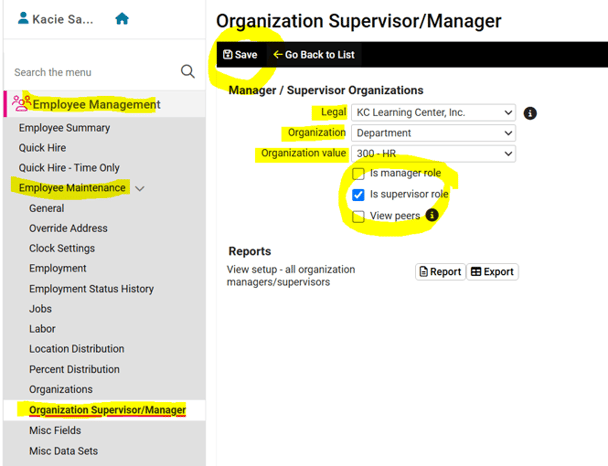
Go to EMPLOYEE MANAGEMENT > Employee Maintenance > Organization Supervisor/Manager.
-
Select the person you are wanting to make a supervisor or manager from your Employee List.
-
Click Add New in the black bar.
-
Use the drop-down menus to select the Legal Company, Organization (such as "Department," and Organization Value (such as "HR").
-
Check the box for "Is supervisor (or manager) role."
NOTE: In isolved, supervisors can view information for the employees assigned to them, while managers can see both employees' and supervisors' information.
6. Check the box for View Peers if you would like this Supervisor or Manager to be able to see OTHER Supervisors' or Managers' information in addition to their specified employees'.
7. Click Save in the black bar.
ASSIGNED SUPERVISOR/MANAGER
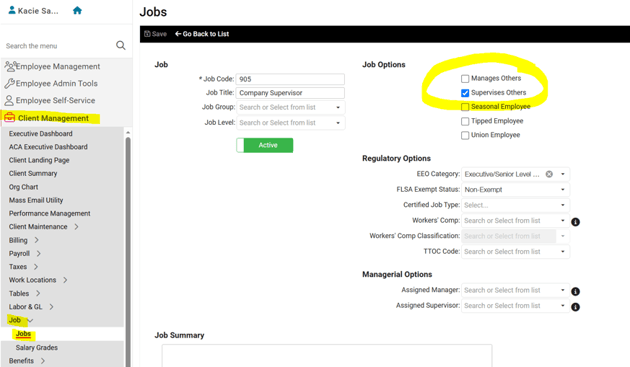
Before an employee can be made an assigned supervisor or manager, they must first have a Job that has been marked as "Supervises (or Manages) Others." This is done by creating the job on the CLIENT MANAGEMENT > Job > Jobs screen, then assigning that job to the employee on the EMPLOYEE MANAGEMENT > Employee Maintenance > Jobs screen.
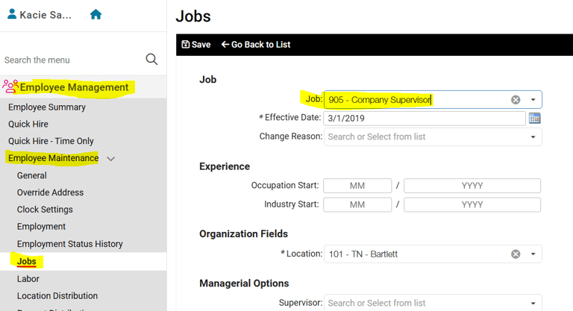
Once an employee has been assigned a Job that can "Supervise (or Manage) Others," their name will be listed in the Supervisor or Manager drop-down menu on other employees' Jobs screen.
-
Go to EMPLOYEE MANAGEMENT > Employee Maintenance > Jobs.
-
Select the employee you want to add a supervisor or manager to from your Employee List.
-
Click the pencil icon on the far right to edit their Job information.
-
Use the drop-down menu(s) in the Managerial Options section to select the appropriate supervisor and/or manager for that employee.
Click Save in the black bar.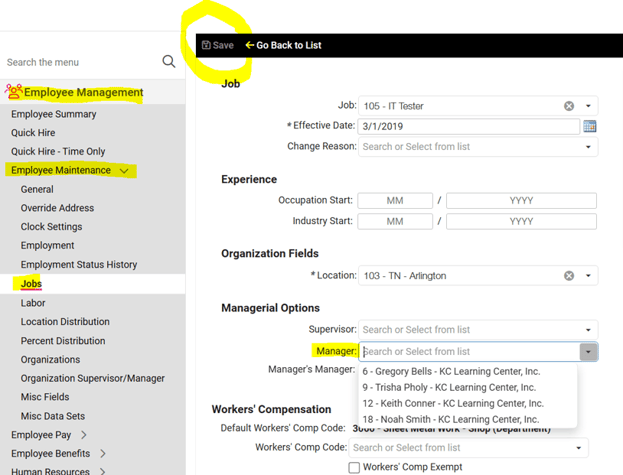
NOTE: If the Assigned Supervisor or Manager terminates employment, they will not automatically be removed for the employees to which they were assigned. Re-assignment to a new supervisor or manager must be done manually on each affected employee's profile. You can determine who those employees are by going to EMPLOYEE ADMIN TOOLS > Employee Analytics > Managerial Assignments, clicking on the Supervisor (or Manager) Assignments tab, and clicking the triangle to the left of their name. This will open up the list of all employees that were assigned to that supervisor/manager. If the employees are not reassigned, any workflow processes that involved their previous supervisor/manager will be left uncompleted.
 What Else Should I Know?
-
At Whirks, we recommend utilizing the Organization Supervisor/Manager setup over the Assigned Supervisor/Manager because of its simpler management. Whenever a new employee is added to their particular Organization Value (for example, the HR Department), the supervisor/manager will have automatic access to their isolved record. Additionally, if the Organization supervisor/manager terminates employment, reassigning employees is only a matter of designating a new Organization supervisor/manager, which requires setup only for that single person.
-
Supervisors and Managers can be given a variety of permissions to update employees' records or complete workflow tasks, such as onboarding, time off request approvals, or payroll processing. For more guidance on what sort of permissions can be set up for your supervisors and managers, please refer to this article.
NOTE: It is important to know that supervisor and/or manager permissions are universal and cannot be customized on an employee-by-employee basis. Meaning, if manager permissions are setup to allow them to update employees' pay rates, then ALL managers will have this capability, regardless of if they are an Organization or Assigned Manager.