Outside of a Client User (admin) Account, isolved uses three permission levels to control what users can see and do: Employee, Supervisor and Manager.
Note: Permissions are role-based, not individual.
Permissions are applied to the entire role, so they cannot be customized on an employee-by-employee basis. For example:
• If the Employee role is given access to update direct deposit information, ALL employees will be able to update their own direct deposit information.
• If the Supervisor role is given access to approve PTO, ALL supervisors will be able to approve PTO the employees assigned to them.
Employees can view their own information, including pay history (pay stubs), tax documents (W4 and State Withholding certificate), and personal details. Additionally, the default setting for employees' Self-Service accounts allows them to update their Direct Deposit information, make Time Off Requests, and update their personal information (such as name and/or address). If you have any questions about what your employees can see and edit or would like to make any changes, please reach out to your Client Success Specialist.
2. Supervisor
In isolved, the default setting for this role only allows for Time Off Request approval, but there are many other permissions that can be assigned to them, such as:
- Updating employees' pay rates
- Updating employees' personal information
- Verifying timecards
- Assisting in payroll preparation by entering hours and earnings on the Time Entry Grid.
In isolved, Managers can view information for both Supervisors and the individual employees assigned to them. Their default and available permissions are the same as Supervisors, noted above.
Don't get hung up on the names! "Supervisor" and "Manager" are just the names isolved uses for its first and second levels of access over employees, and they don't need to match someone's actual job title. For example, even if a person's title in your company is Manager, we'll typically start them with the "supervisor" role in isolved. This allows more flexibility as your team grows!
 What Else Should I Know?
- There are two types Supervisor/Manager roles that can be setup: Organization Manager/Supervisor or Assigned Manager/Supervisor.
-
"Organization" Supervisors/Managers will be able to see all employees listed with the same Organization Value (for example, all employees with a specific Department). Whenever a new employee is added to the Organization Value for which a supervisor/manager is responsible, they will have access to the new employee's information right away.
-
"Assigned" Supervisors/Managers must be assigned to a Job that has been marked as "Supervises (or Manages) others." From there, they must be individually assigned to the employees they are responsible for on the employee's Job screen.
-
For more guidance on Organization vs. Assigned supervisors or managers, please refer to this article.
-
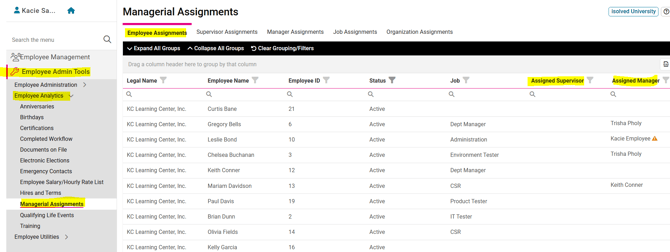
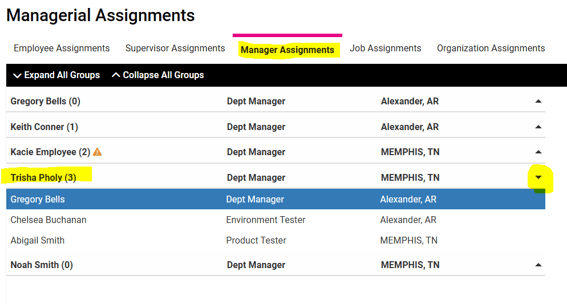
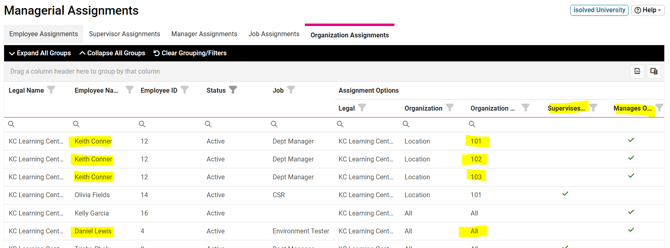
A quick way to see which employees have been setup as Organization or Assigned Supervisors or Managers, go to EMPLOYEE ADMIN TOOLS > Employee Analytics > Managerial Assignments. This screen defaults to the Employee Assignments tab, which will show all employees and their respective Assigned Supervisor and/or Manager. The tabs across the top will allow you to view this information by each Supervisor or Manager, and their respective employees. The Organization Assignments tab will display all Organization Supervisors and Managers.