
Here are some step-by-step by step instructions to reactivate an employee:
Reactivating an Inactive Employee
-
Go to EMPLOYEE MANAGEMENT> Employee Maintenance> General.
-
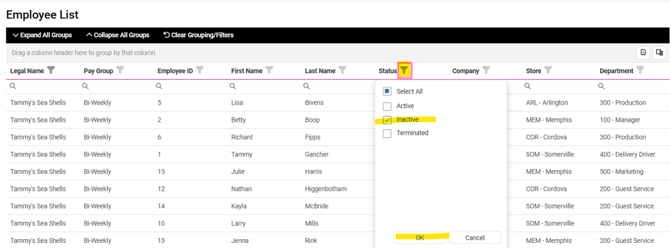
Filter the Employee List by clicking the Filter icon (funnel) for the Status column, check the box for Inactive, and click OK.
-
Select the employee you want to reactivate.
-
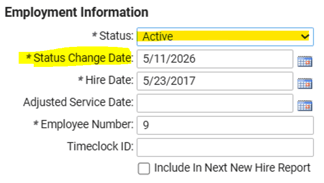
On the General screen under Employment Information section, change the Status from Inactive to Active using the drop-down.
-
The Status Change Date will automatically populate to the current day but can be edited as needed.
-
Click Save in the black bar.
NOTE: If an employment status change has a future effective date, the Status will not change until that date.
Federal law requires employers to report newly hired and rehired employees to their state's directory within 20 days of their (re)hire date. Some states set the deadline as low as 7 days. Simply updating an inactive employee's status back to "active" will not create a record for New Hire Reporting. This must be activated by checking the "Include in Next New Hire Report" box before saving the change. 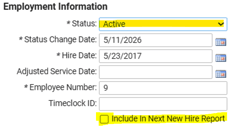
 What Else Should I Know?
-
Because new hire reporting for a reactived employee can easily be overlooked, we recommend entering a Termination Record when an employee ceases employment temporarily. That way, upon return, their profile can be reactivated by "rehiring," which will trigger proper reporting. For more guidance on how to rehire a terminated employee, please refer to this article.