
Step 1: Contact Your Whirks Client Success Specialist
Reach out to your Client Success Specialist as soon as possible. We'll need to set up the remote work location in your isolved account before payroll can be processed correctly for this employee. We will need you to provide their home address in order to get it setup. Don't wait until their first paycheck — the earlier we get this set up, the smoother their onboarding will go.
Step 2: Assign Employee to the Remote Location in isolved Onboarding
When onboarding your new hire (or updating an existing employee's work location), make sure they are assigned to the correct remote work location in isolved. An employee's work location determines how their payroll taxes are calculated, so this step is critical. If you need help with this in isolved, reach out to your Client Success Specialist.
INITIATE ELECTRONIC ONBOARDING FOR A REMOTE WORKER
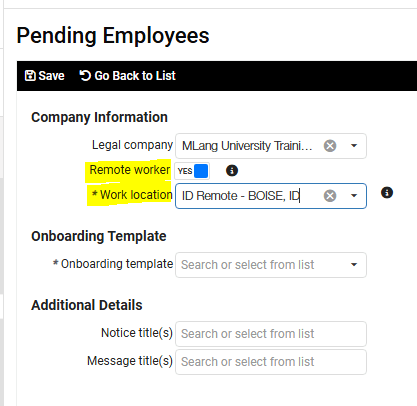
When initiating onboarding from the EMPLOYEE ADMIN TOOLS > Employee Administration > Pending Employees dashboard, you will need to toggle the Remote Worker button to "YES", and select the appropriate remote work location from the Work Location dropdown:
ASSIGN EXISTING EMPLOYEE TO REMOTE WORK LOCATION
If assigning an existing employee to a new remote work location, follow steps below:
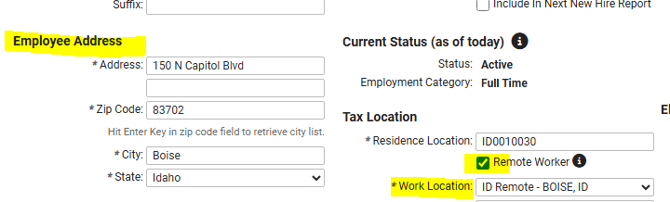
- Go to EMPLOYEE MANAGEMENT > Employee Maintenance > General.
- Select the employee from the Employee List.
- Enter the new address under Employee Address section.
- Under Tax Location check the Remote Worker box.
- Select the appropriate remote location from the Work Location dropdown.
- Click Save in the black bar.
Step 3: Register for State Tax Accounts
If this is your first employee working in that state, you'll need to register for:
- State Unemployment Insurance (SUI) — Each state requires employers to pay into their unemployment fund. Rates and deadlines vary by state.
- State Income Tax Withholding — Most states require you to withhold state income tax from employee wages. (Note: a handful of states have no income tax — your CSS can help you confirm.)
- Local Income Tax Withholding — Some cities and counties also require local tax withholding. This is common in states like Pennsylvania, Ohio, and Kentucky.
It is important to note that timely tax payments and tax filing can be impeded if we do not have the state-issued Tax IDs as quickly as possible. Therefore, we recommend allowing Whirks to handle the registrations on your behalf for a one-time $150/state fee. Just let your Client Success Specialist know, and we will take care of the rest!
Step 4: Verify Your Workers' Compensation Coverage
Most states require employers to carry workers' compensation insurance for any employee working in that state — even remotely. Contact your workers' comp carrier to confirm your policy covers employees in the new state. If it doesn't, you'll need to add that state to your policy before the employee's start date.
Step 5: Check Your State Leave Law Obligations
Many states have mandatory leave programs that employers are required to participate in once they have employees working there. These can include:
- Paid sick leave
- Paid family and medical leave (PFML)
- State disability insurance (SDI)
Requirements vary significantly by state. We recommend consulting with an HR advisor for state-specific guidance. Your Client Success Specialist can help you with adding any needed PTO policies and tracking into isolved.
Step 6: Provide State-Required Labor Law Posters
Employers are required to display (or distribute) federal and state labor law posters. For remote employees, you'll need to provide electronic versions of the posters for their specific work state — not just your company's home state. The Department of Labor and most state labor agencies provide these as free downloads.
Step 7: Talk to Your CPA About Business Tax Nexus
This one falls outside of payroll, but it's important: hiring an employee in a new state can create business tax nexus, meaning your company may become subject to that state's corporate income tax, franchise tax, or other business taxes. We recommend giving your CPA a heads-up any time you hire in a new state so they can advise accordingly.
 What Else Should I Know?
For more guidance on how to get your new employee entered into isolved via electronic onboarding, please refer to this article.