
Here are some helpful step-by-step instructions on how to pay a terminated employee:
FROM THE EMPLOYEE'S INDIVIDUAL TIME ENTRY SCREEN
-
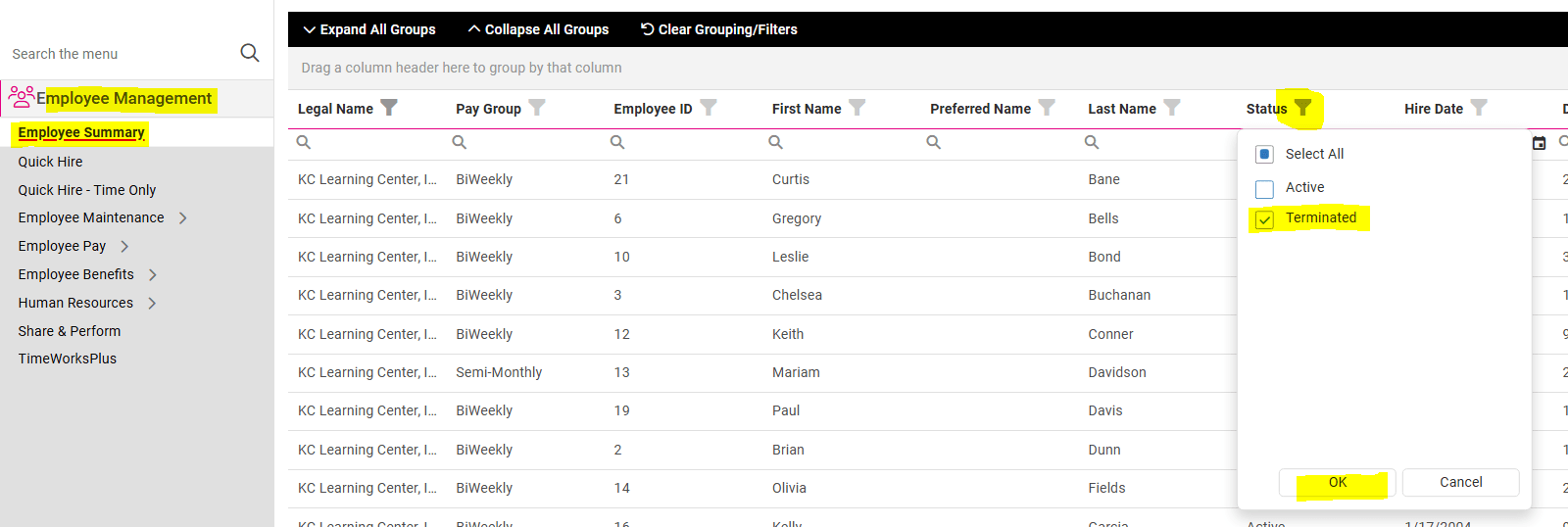
From EMPLOYEE MANAGEMENT > Employee Summary, use the filter icon to the right of the Status heading to select "Terminated," then click OK.
-
Select the terminated employee to be paid from your Terminated employee list.
-
Go to PAYROLL PROCESSING > Payroll Entry > Individual Time Entry.
-
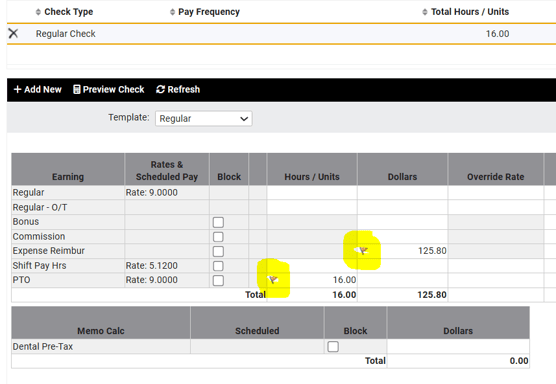
Enter all hours and earnings needing to be paid in the grid displayed for the Regular Check on this screen. (NOTE: All data entered will display a red flag warning, indicating that this employee is in terminated status. This is precautionary only; it will not stop a check/direct deposit from being created for them.)
-
Preview your Payroll Reports as normal before submitting for processing. (NOTE: The Exceptions Report will note that a "Terminated Employee is being paid." This is precautionary only; your payroll will process as normal.)

FROM THE TIME ENTRY GRID
- Navigate to PAYROLL PROCESSING > Payroll Entry > Time Entry Grid.
- Use the filtering options at the top to change the Status field to "Terminated" then click the Apply button. Your Time Entry Grid will repopulate displaying only your terminated employees.

- Enter the hours and/or earnings that need to be paid as normal into the grid. (NOTE: All data entered will display a red flag warning, indicating that this employee is in terminated status. This is precautionary only; it will not stop a check/direct deposit from being created for them.)
- Preview your Payroll Reports as normal before submitting for processing. (NOTE: The Exceptions Report will note that a "Terminated Employee was paid." This is precautionary only; your payroll will process as normal.)
NOTE: If an employee's termination date is within the current pay period, they will be listed on your time entry grid with your Active employees until the payroll is processed. The terminated employee will no longer be displayed on the Time Entry Grid thereafter. For further guidance on how to terminate an employee is isolved, please refer to this article.
 What Else Should I Know?
-
Salaried employees will receive their normal Per Pay Salary for the pay period including their Termination Date. If they should not receive their full regular pay, the appropriate hours will need to be entered into the Regular - Earn Hrs column in order to override this.
-
When entering a termination record in for an employee, if the "Delete Future Absences" box is not checked, it is possible that the employee could be paid for PTO that had been approved before their termination. This is why we recommend reviewing your Exceptions Report each time you prepare payroll, to ensure no terminated employees are paid erroneously.