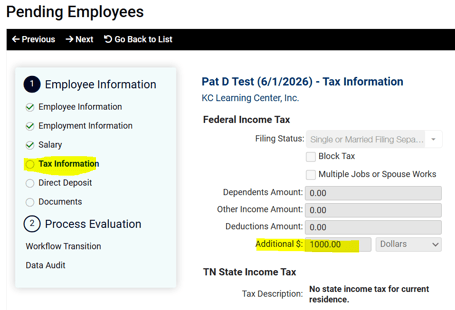
When an employee completes the Form W-4 during electronic onboarding, they may enter an Extra Withholding amount in Step 4(c). If there is an amount entered in this step, isolved will withhold BOTH the standard Federal Income Tax withholding (that is calculated based on the other information entered) AND the extra withholding amount from the employee's check each pay period.
The system will attempt withhold the full amount of the standard and extra withholding. If the employee did not earn enough wages in the pay period to offset the full withholding, it can result in a $0.00 Net Paycheck.
Sometimes the Extra withholding is intended by the employee, but it can sometimes be in error, especially if the amount entered exceeds an employee's usual per-pay earnings.
VIEWING AN EMPLOYEE'S TAX SETTINGS IN ISOLVED
-
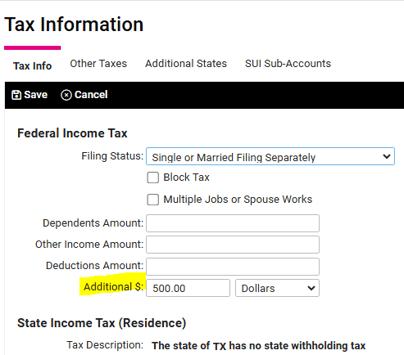
Go to EMPLOYEE MANAGEMENT > Employee Pay > Tax Information.
-
Select the employee from the Employee List.
-
Under Federal Income Tax, the Additional $ field will show the employee's per-pay Extra withholding amount.
VIEWING AN EMPLOYEE'S FORM W-4
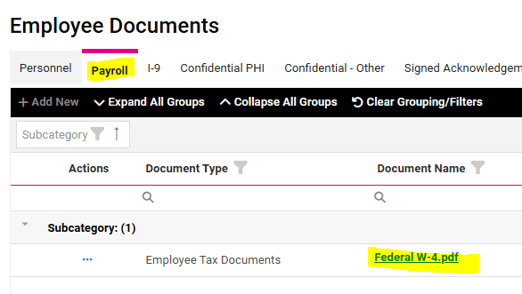
If the employee completed electronic onboarding in isolved, their Form W-4 will be stored as a pdf file under EMPLOYEE MANAGEMENT > Human Resources > Employee Documents on the Payroll tab. Click on the blue document link to open the pdf in a separate browser tab.
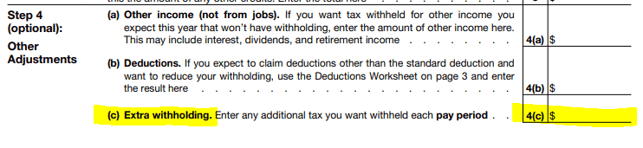
Line 4(c) will show any Extra withholding amount entered by the employee.
HOW TO CORRECT IF INFORMATION HAS BEEN ADDED IN ERROR
If the employee entered an Extra withholding in error, they should complete a new form in their Employee Self Service account. Log into https://aee.myisolved.com, navigate to EMPLOYEE SELF-SERVICE > Tax Updates Wizard, and click Start to complete the wizard.
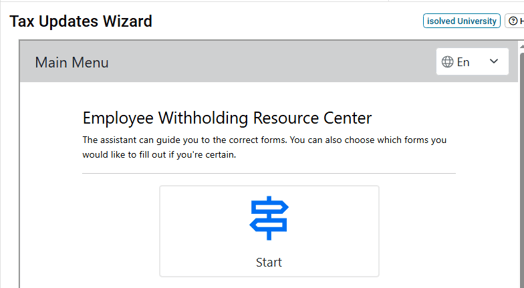
Once completed, the form(s) is saved under Employee Documents, and the Tax Information screen is automatically updated with the new W-4 designations.
For further guidance, please refer to the "How can my employee update their W-4?" article.
 What Else Should I Know?
- If the employee wishes to have their over-withheld Federal taxes returned, please contact your Client Success Specialist to discuss if a correction is possible.
- These errors can be avoided during onboarding by carefully reviewing the "Additional $" field in the Tax Information section when completing the Client New Hire Wizard. If the amount looks unusually large, we recommend confirming this information with your new employee prior to processing their first paycheck.