Skip to content
English - United States
  • There are no suggestions because the search field is empty.

Why didn’t my employee get a W2 this year? / Why did I only get some of my employees W2s?

If an employee consents to Electronic Year End Delivery in isolved, they do NOT receive a paper W2 via mail and will access the electronic copy through their Employee Self-Service account. For all employees, regardless of election, a digital copy of their W2 will be available within their Employee Self-Service account by January 15th, under the "W2/ACA/1099 Forms" menu option. Employees' electronic delivery elections can be found under EMPLOYEE ADMIN TOOLS > Employee Analytics > Electronic Elections.

Here are step-by-step instructions to view employee year end consent statuses in isolved:

VIEWING YEAR END DELIVERY CONSENT STATUS

  1. Log into your isolved Admin User account at https://whirks.myisolved.com.

  2. Navigate to EMPLOYEE ADMIN TOOLS > Employee Analytics > Electronic Elections

  3. Year End Delivery Consent Status is indicated in the Year End Delivery column.
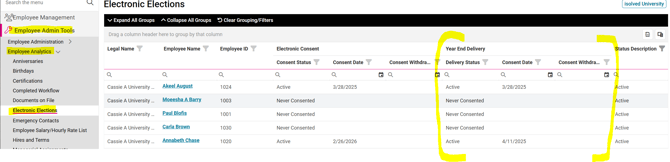

  • If an employee has "Never Consented" or has "Withdrawn Consent," a copy of their W2 will be mailed via regular U.S. postal service to the home address listed for them in isolved as of January 5th.

  • All paper W2s will be mailed by the January 31st deadline.

  • For all employees, regardless of election, a digital copy of their W2 will be available within their Self-Service account by January 15th.   

ACCESSING W2 FORM IN EMPLOYEE SELF-SERVICE ("CLASSIC VIEW" )              

  1. To access their Employee Self-Service (ESS) account through the classic browser view, the employee will begin by signing in at https://whirks.myisolved.com. 

  2. Navigate to EMPLOYEE SELF-SERVICE > W2/ACA/1099 FORMS.

  3. Click the View Document link. (A separate browser tab will open while the form is generating.)

  4. Once full generated, the document will be available in the employee's Downloads folder.

ACCESSING W2 FORM IN ADAPTIVE EMPLOYEE EXPERIENCE ( "EMPLOYEE WORKSPACE VIEW" )

  1. To access their ESS account through the Adaptive Employee Experience, the employee will begin by signing in at https://aee.myisolved.com (which can be done from any mobile device or regular desktop computer), or by using the isolved People Cloud mobile app.

  2. Navigate to PAY AND TAX > Year-end Tax Forms.

  3. Click on the W-2 link listed under the "Name" column on the left-hand side for the desired year.


  4. They will receive a download confirmation message while their documents are generating.

  5. Once generated, the W2 will open automatically (or be available in) their pdf application, such as Adobe or FoxIt.

NOTE: The View button in the "Instructions" column provides filing instructions and code explanations only, not the actual W2. 


 What Else Should I Know?

  • If the home address for your employee was not correct as of the January 5th deadline, it is possible that their paper W2 will not be received via USPS as anticipated. However, they can still access the digital form through their Employee Self-Service account any time after January 15th.

  • Admin Users also have access to employees' W2s under EMPLOYEE SELF-SERVICE > W2/ACA/1099 Forms screen.

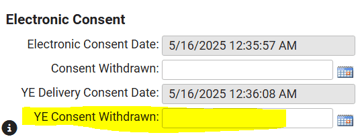
  • If an employee previously consented to Electronic-Only Delivery but later wishes to receive a paper copy after all, an Admin User must enter a "YE Consent Withdrawn" date in the field listed under the "Electronic Consent" section on the EMPLOYEE MANAGEMENT > Employee Maintenance > General screen before December 31st.