
Here are step-by-step instructions on how to add an Additional Check:
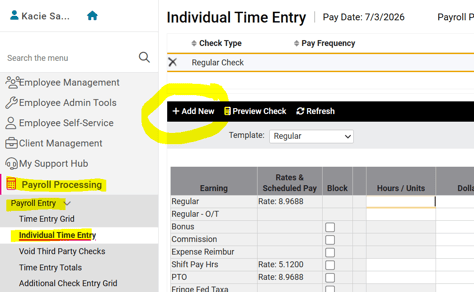
- Go to PAYROLL PROCESSING > Payroll Entry > Individual Time Entry.
- Select the employee from the Employee List.
- Click Add New in the black bar.
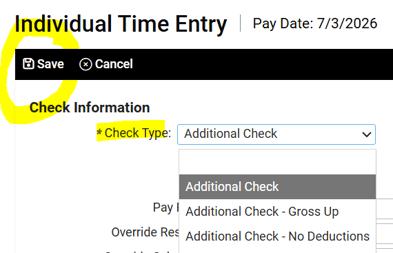
- Use the drop-down menu to select the appropriate Check Type:
- Additional Check: All regularly scheduled deductions will automatically be included on this check type. Normal hours for salaried employees will not auto-populate, however, so they must be entered in.
- Additional Check - Gross Up: This check type will allow you to enter the total amount you wish the employee's net check to be in the Dollars column for the desired earning. The system will then adjust the gross amount to account for all deductions and taxes.
- Additional Check - No Deductions: This check type will restrict all scheduled deductions from being included. Taxes will still be calculated and deducted.
- Manual Check: DO NOT USE THIS CHECK TYPE. This check type is for manually entering in ALL check details, meaning, the system will not calculate taxes for you. If you need to enter a manual check record, please refer to this article for additional guidance.
- All other fields can be left blank. Click Save in the black bar.
- Back on the Individual Time Entry screen, begin by making sure the Additional Check created is outlined with gold bars above and below it by clicking on it in the list at the top. Enter all applicable earnings and deductions for the additional check in the grid below.
- Click Preview Check in the black bar to review the details you have entered to ensure everything is correct (for example, hours and gross wages look correct, deductions either are or are not being included, etc.)
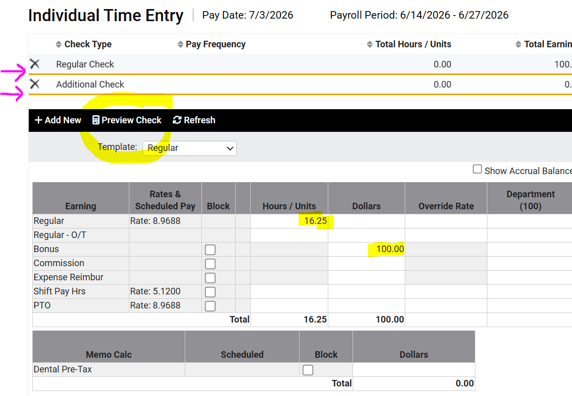
- Click Back in the black bar. All check information entered will auto-save and be included with your next scheduled payroll. The employee will receive a separate direct deposit for the Additional Check amount.
 What Else Should I Know?
- If you need to add additional checks for multiple employees, this can be done easily from PAYROLL PROCESSING > Payroll Entry > Additional Check Entry Grid.
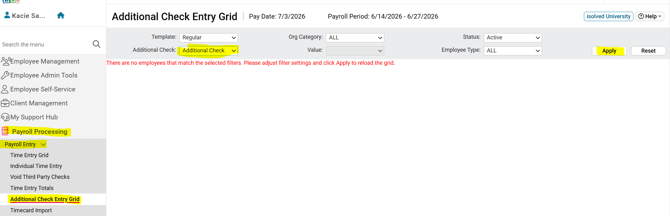
- The screen will initially appear blank. Use the drop-down menu to select the desired Additional Check Type, the click the Apply button.
- A time entry grid will populate where you can enter all check details for all applicable employees at once.
- All information entered on this grid will automatically create an Additional Check record for each employee.
- If an employee's bonus amount is particularly large, it is possible that adding it to their Regular check will cause their Federal taxes to be calculated at a higher bracket. (See this article for how an employee's Federal taxes are calculated.) Paying the bonus separately on an Additional Check will allow just those earnings to be used in the Federal tax calculation, which can mean the employee will receive a larger portion of his/her bonus than if it were combined on their Regular check.