Here are step-by-step instructions for an employee requesting time off in their isolved Employee Self Service account:
FROM CLASSIC VIEW
-
Log into isolved at https://whirks.myisolved.com.
-
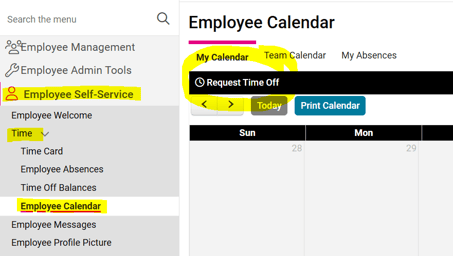
Go to EMPLOYEE SELF-SERVICE > Time > Employee Calendar.
-
Click Request Time Off in the black bar.
-
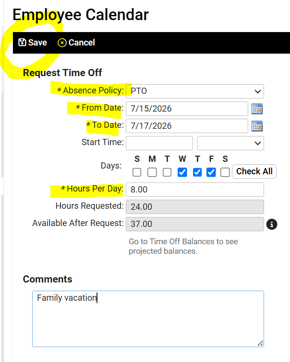
Use the drop-down menu to select the appropriate Absence Policy.
-
Enter the From and To Dates, as appropriate.
-
Enter a Start Time (optional).
-
Enter (or edit, as needed) the Hours Per Day.
NOTE: If an employee wants to submit a request for a day-and-a-half, two separate requests will need to be submitted. One for the full day (i.e. 8 hours), and one for the half day (i.e, 4 hours), as the system will apply the Hours Per Day to all dates listed in the From and To Date fields.
8. Enter any Comments (optional).
9. Click Save in the black bar.
FROM EMPLOYEE WORKSPACE VIEW
- Log into isolved at https://aee.myisolved.com or the isolved mobile app.
- Click TIME AND ATTENDANCE > Time Off.
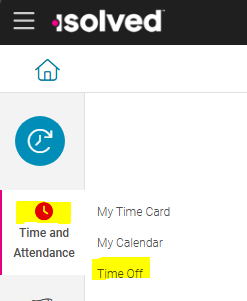
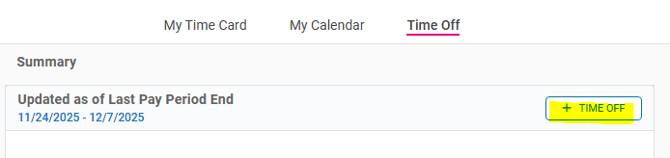
- Click +Time Off.
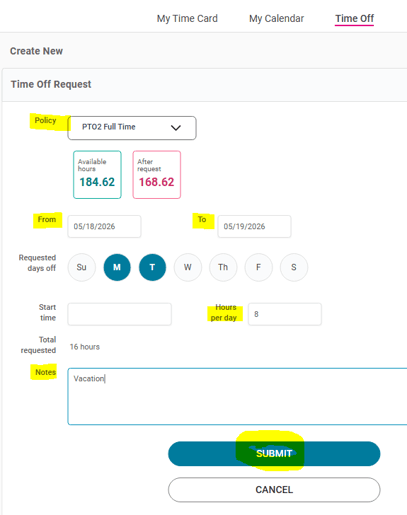
- Select appropriate Policy from available drop-down list.
- Enter From and To dates.
- Enter Start time (optional).
- Enter Hours per day.
- Enter Notes (optional).
- Click Submit.
- The employee will receive an email stating their PTO request has been submitted. The client user or manager assigned to the PTO workflow will receive an email notification that a PTO request is pending approval. When the request is approved or rejected, the employee will receive an email notification with the status update.
 What Else Should I Know?
-
For additional guidance on how to approve submitted time off requests, please refer to these helpful articles:
-
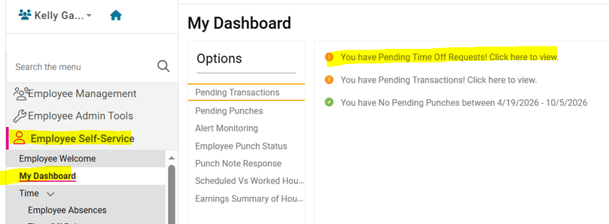
If you have any time off requests awaiting your approval, a notification will also appear in “My Dashboard”. This area was designed to give you up-to-date information about your employees in a single, convenient view. By selecting this notification, you will be directed to the Admin Calendar.