
If you are using isolved's timekeeping service and only see your salary employees on the Payroll Register report when preparing payroll, it is likely that the timecards were not properly Locked and Committed. Here are step-by-step instructions on how to Process Payroll when using isolved Timekeeping services:
-
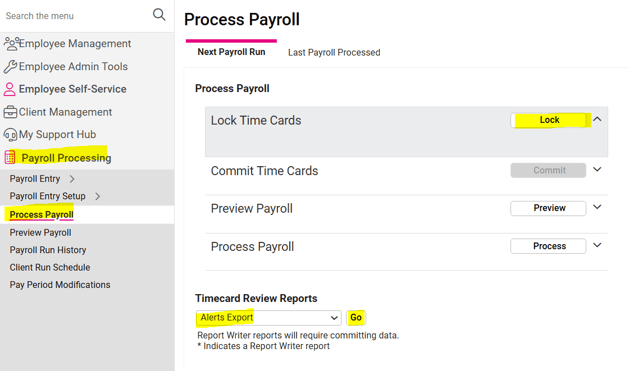
Go to PAYROLL PROCESSING > Process Payroll.
-
Click the Lock button listed at the top. This restricts employees, supervisors or managers from making any changes to timecards while payroll being processed.
-
In the Timecard Review Reports section, use the drop-down menu to select the “Alerts Export," then click Go. This report will show any critical errors that must be corrected before timecards can be processed.

NOTE: If corrections need to be made to an employee’s timecard, go to EMPLOYEE SELF SERVICE > Time > Time Card and refer to this article for further instructions on how to make the needed corrections.
4. Once all critical errors have been corrected, return to PAYROLL PROCESSING > Process Payroll.
5. We recommend reviewing the Alerts Export once more to ensure that all critical errors have been resolved.
6. Click the Commit button just under the (now greyed-out Lock button). This will push all data from timecards to your Time Enty Grid for processing.
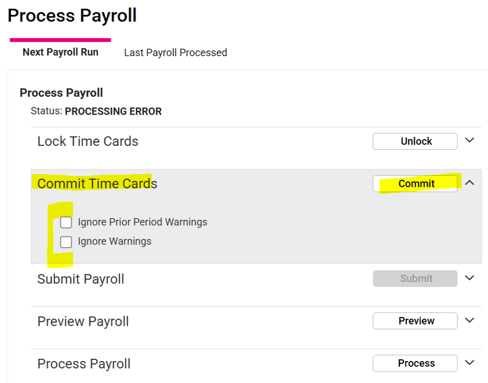
NOTE: It is possible that a warning message will appear after clicking the Commit button. These warnings can be ignored by checking the appropriate box in the Commit Time Cards section, then clicking the Commit button once again. If you have any questions regarding the warning you are seeing, please reach out to your Client Success Specialist before continuing.
7. We recommend going to PAYROLL PROCESSING > Payroll Entry > Time Entry Grid to verify that all hours have been populated. You can also add any additional earnings, such as Commissions or Bonuses, once timecards have been committed.
8. Once all hours and earnings have been added to the Time Entry Grid, return to PAYROLL PROCESSING > Process Payroll, click the Preview button to review all reports before submitting your payroll for processing.
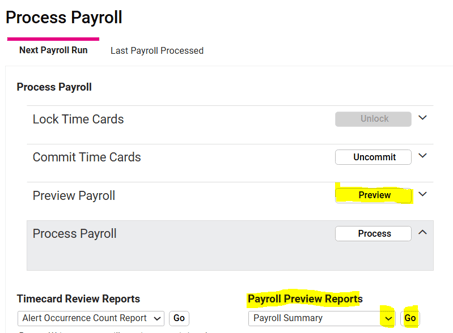
For additional resources on which reports to review when preparing your payroll, please refer to this article.
 What Else Should I Know?
-
If you have committed timecards but discover there is an error that needs to be corrected, you must first "uncommit" them in order to make any corrections directly to employees' timecards. It is easy to lose track of where you have left off in the processing steps, so it can be helpful to remember that the button message on the Process Payroll screen is the action that will be performed once clicked (meaning, if the button reads "Uncommit," then by clicking on it, the hours that were populated onto the Time Entry Grid will be removed and timecards open for correcting).
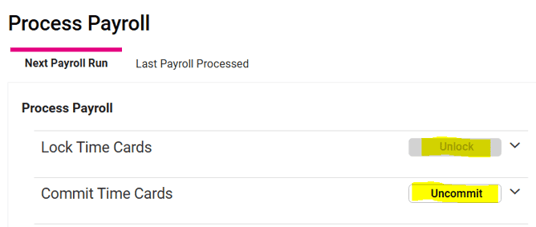
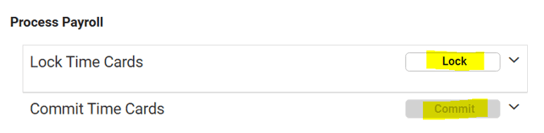
NOTE: The buttons should read "Unlock" and "Uncommit" before clicking the Submit/Process button to send your completed payroll to Whirks. This ensures that all hours have been transferred from timecards to the Time Entry Grid and will generate payments to all applicable hourly employees.