
Here are step-by-step instructions for entering an employee absence:
- Log into your Client User account at https://whirks.myisolved.com.
- Go to EMPLOYEE SELF-SERVICE > Time > Employee Absences.
- Select the employee from the Employee List.
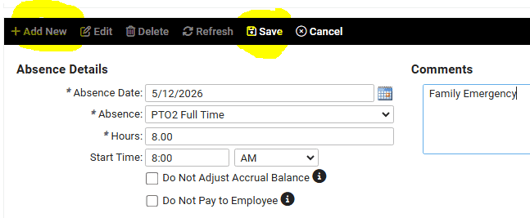
- Click Add New in the black bar.
- Select the Absence Date from the calendar.
- Select the Absence policy from the available dropdown list.
- Enter the Hours.
- Enter a Start Time (optional). (NOTE: If this field is left blank, the Absence record will post with a Start Time of midnight on the employee's Time Card.)
- Enter Comments (optional).
- Click Save in the black bar.
- The absence is automatically approved upon saving, and will be added to the employee's Time Card (if using isolved Time & Attendance) or on the Time Entry Grid (is using manual payroll entry).
NOTE: When manually entering absences on the Employee Absences screen, you must add each day of the absences individually. Repeat the steps above to enter each day's absence.
 What Else Should I Know?
For additional guidance on employee absences (i.e., PTO, Sick Leave, etc.), please refer to these articles: